
4. Towers, floors and flats
Building the property structure, flat types, and archiving or restoring units.
How the structure fits together
A society is described in three levels: towers (or wings, or buildings) contain floors, and floors contain flats. Billing, residents and reports all hang off the flat, so this structure comes first.
Everything is reached from Towers in the sidebar: click a tower to see its floors, and View Flats on a floor to see its flats.
Setting up a whole society?
One spreadsheet row per flat creates the tower, floor and flat together. See chapter 6. Open Bulk Import arrow_forwardBefore you start: flat types
Every flat needs a flat type. A new society starts with Studio / RK, 1 BHK, 2 BHK, 3 BHK, 4 BHK, Penthouse and Other.
- Go to Settings , then Flat Types .
- Add any type your society uses that is missing, for example Shop or Duplex. Give it a name and, if useful, a description.
- Deactivate or archive types you will never use, so they stop appearing in the flat form.
The Used In column shows where a type is in use. A type that flats or billing rules still use cannot be deactivated or archived.
Open Flat Types arrow_forwardTowers
- Open Towers and click Add Tower .
- Enter the Name (for example A Wing). It must be unique in the society.
- Optionally add a Mobile Number (exactly 10 digits), an Email and a Remark for the tower's contact.
- Leave Active Tower ticked.
- Click Add Tower , or Save and Add Another to enter the next one straight away.
The list shows each tower's floors, flats and vacant flats. The three-dot menu on a row has the edit, deactivate and archive actions.
Open Towers arrow_forwardFloors
Click a tower's name to open it. The page shows the tower's details, counts of floors and flats, and the floor table.
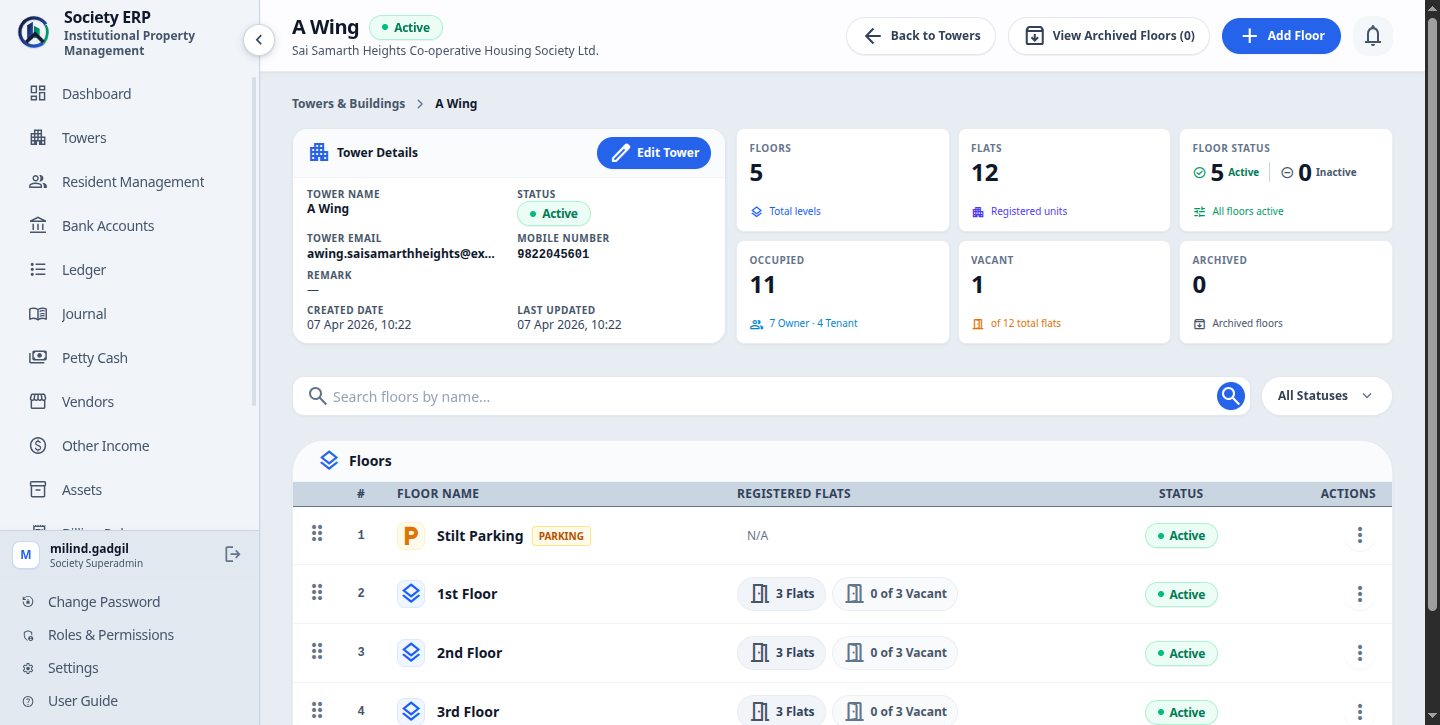
- Click Add Floor on the tower's page and give it a Name, such as Ground, 1st Floor or Terrace. Names must be unique within the tower.
- Tick the parking option if this is a parking level. A parking floor holds no flats.
- Save. Repeat for each floor.
- Drag floors into the order you want them listed.
- A floor that already has flats cannot be turned into a parking floor.
- A floor cannot be activated while its tower is inactive. Activate the tower first.
Flats
Click View Flats on a floor. The page lists the floor's flats with ownership tiles above.
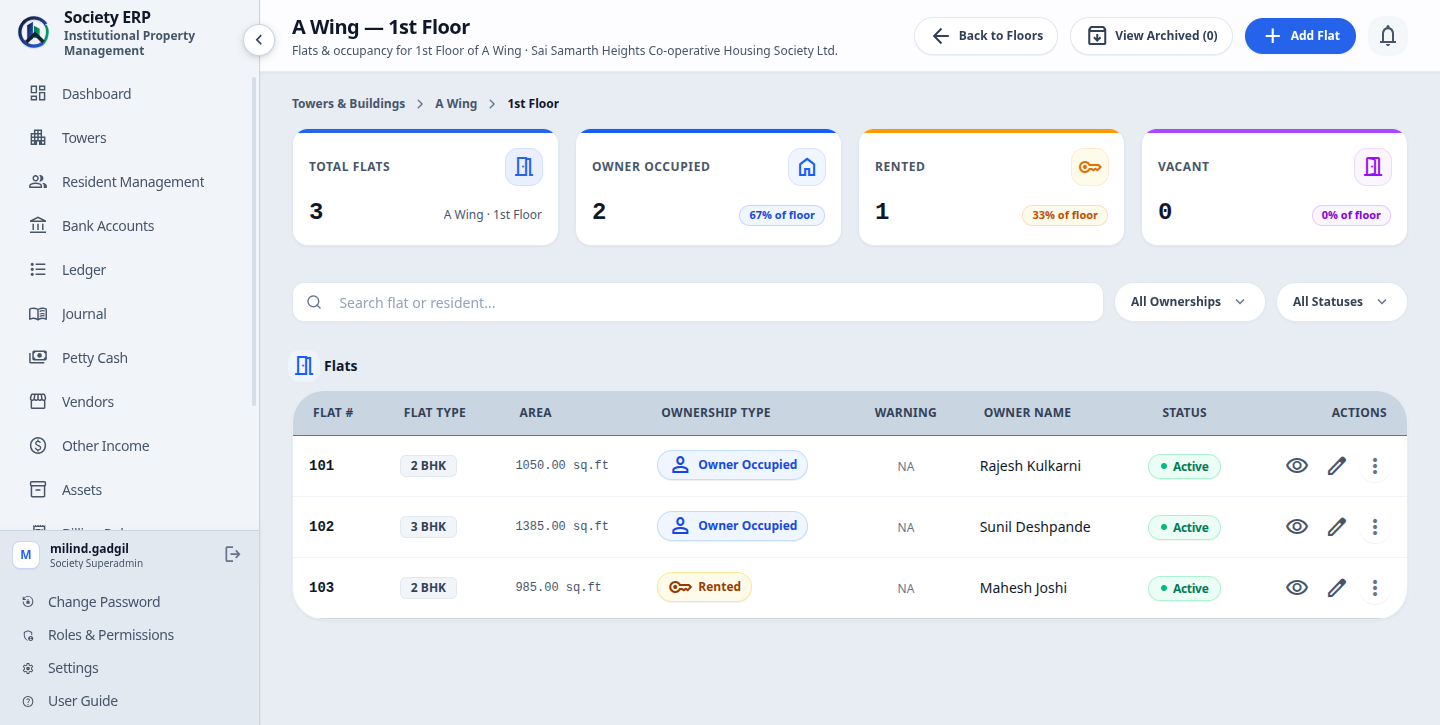
To add a flat, click Add Flat on this page and fill in Flat Details:
| Flat number * | For example 101 or B-402. Must be unique within the tower; the form checks as you type. |
| Flat type * | From your Flat Types list. Lets a billing rule target one kind of flat. |
| Ownership type * | Owner Occupied, Rented, Vacant or Reserved. See below. |
| Area * | In sq.ft. Any per-sq.ft. billing rule multiplies its rate by this figure. |
| Parking number | The assigned parking slot, if any. |
| Primary contact number, Primary email | Optional contact for the flat. |
| Flat Active | Untick to keep the flat on record but leave it out of bill generation. |
The same form has Owner Details, Co-Owner Details and Tenant Details, so you can register the people along with the flat. Chapter 5 covers them.
Ownership type and what it requires
| Type | Meaning | Rule |
|---|---|---|
| Owner Occupied | The owner lives in the flat. | An owner must be registered. |
| Rented | A tenant lives in the flat. | A tenant must be registered. Without one the flat appears under the warning bell. |
| Vacant | Nobody lives there. | Cannot be chosen for a one-off additional bill. |
| Reserved | Held back, for example for the society office. | Cannot be chosen for a one-off additional bill. |
Deactivating, archiving and restoring
- Deactivate a tower, floor or flat to pause it. Deactivating a tower or floor also takes everything beneath it out of use, and reactivating brings it back, except anything you had deactivated on its own.
- Archiving with advance money: if a flat, floor or tower holds advance, the screen first asks for a refund mode and remark, then refunds the advance before archiving. If an advance is still awaiting cheque clearance, archiving is refused until it is cleared or failed. A tower holding advance cannot be archived in a bulk action: archive it on its own.
- Archive to remove it from the everyday lists. View Archived on the Towers page shows archived towers (a tower's page has View Archived Floors , and a floor's flat list has its own View Archived ), where you can Restore them.
- Delete permanently is offered on archived towers, floors and flats. It removes the flats, their residents and documents, and their invoices, waivers and ledger vouchers. It cannot be undone, so use it only for records created by mistake.
Common problems
- "A tower with this name already exists": tower names are unique in the society, including archived ones. Restore the archived tower instead.
- The flat type list is empty: no flat types are active. Add or activate one under Settings.
- A flat is missing from the bills: check that the flat, its floor and its tower are all active, and that a billing rule covers its tower, floor and flat type.