
5. Residents
Owners, co-owners, tenants, family members, documents, moving out and resident history.
Who can be on a flat
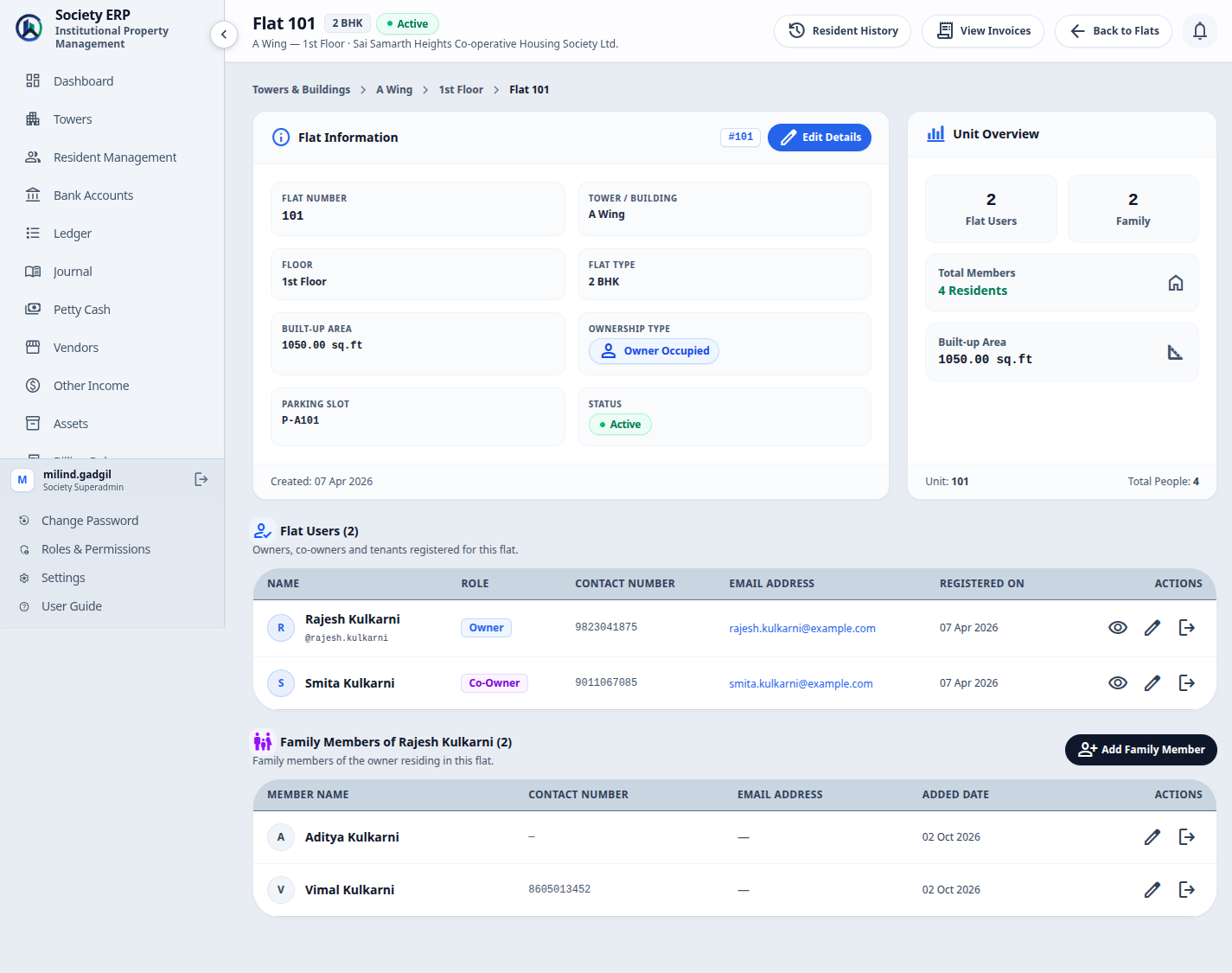
Each flat has up to three registered flat users, plus their households:
| Owner | The legal owner. One per flat. Required when the flat is Owner Occupied. |
| Co-Owner | A second owner. One per flat, optional. |
| Tenant | The person renting. One per flat. Required when the flat is Rented. |
| Family members | People living with the owner, or with the tenant. Any number. A name is enough; mobile and email are optional. |
Everything about a flat's people is done on the flat's own page: Towers , the tower, View Flats on the floor, then the flat number.
Adding an owner, co-owner or tenant
- Open the flat and click Add Owner , Add Tenant or Add Flat User .
- Choose the User type.
- Enter the Email address, Full name and Mobile number (10 digits). All three are required.
- Optionally add a profile picture (JPG, PNG, GIF, WEBP or AVIF) and tick Club member.
- Click Register User .
- Emails and mobile numbers are unique across the platform. The one exception is an owner who owns more than one flat: use the same name and email on each. When you type an email already registered on another flat, the form offers to fill in that person's details for you.
- Changing a flat to Rented on Edit Details asks for the tenant's details in the same form. If they are incomplete, nothing is saved.
- To correct someone's details, use the edit action on their row. A resident who has a login shows it under Linked Login Account.
Family members
- On the flat's page, find the family section for the owner (or the tenant) and click Add Family Member .
- Enter the Name, and the mobile and email if you have them.
- Click Register Family Member .
The Unit Overview totals flat users and family members into the number of people living in the flat.
The resident's profile and documents
Click a flat user's name to open their profile: contact details, login account, family members, the flat summary and their documents.
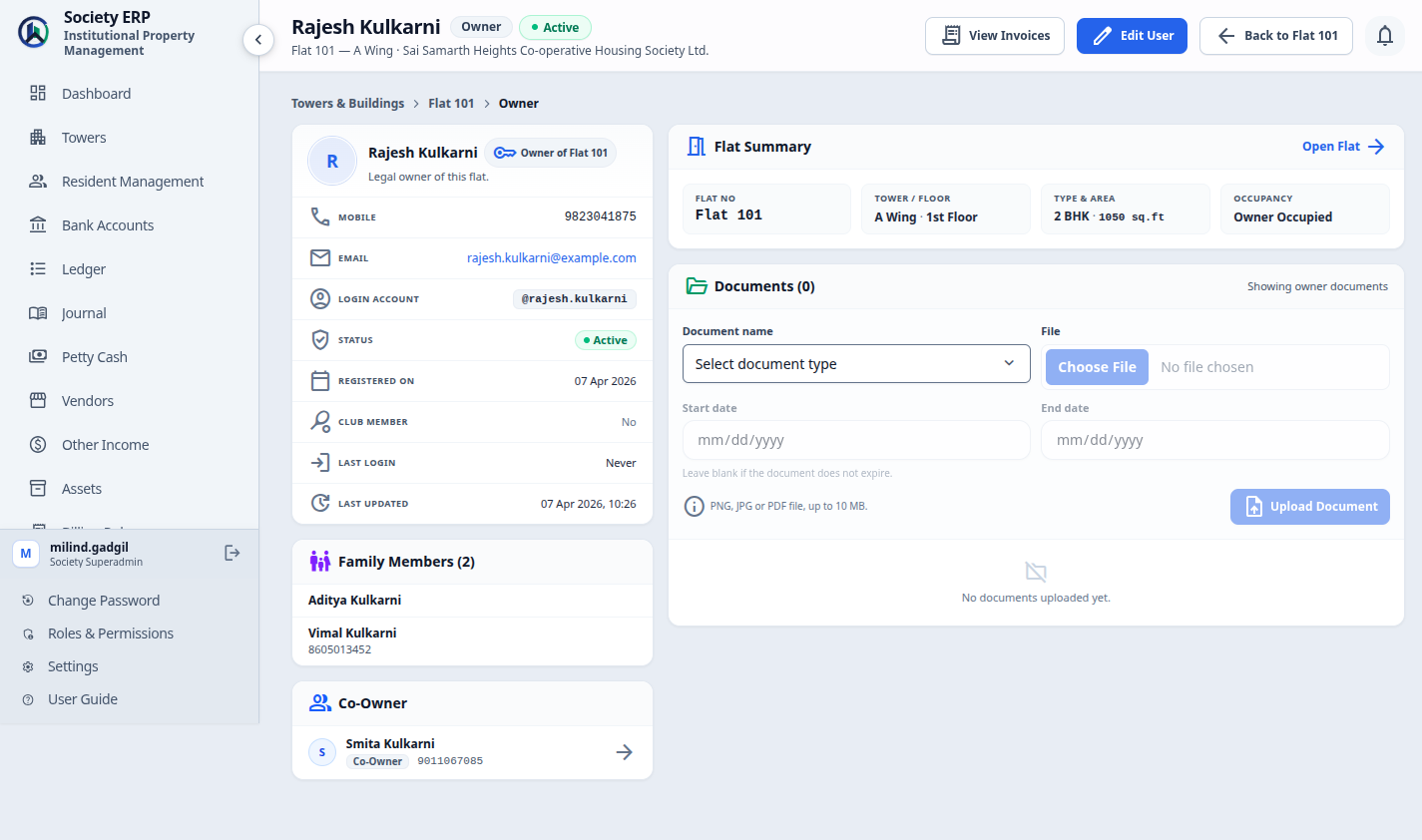
To upload a document:
- Enter a Document name and choose the document type.
- Choose the File: PNG, JPG or PDF.
- Enter the Start date and, if the document expires, the End date. Leave the end date blank for documents that never expire, such as a sale deed.
- Click Upload Document .
- Document types come from Settings , Document Labels , with a separate list for owners, co-owners and tenants. The defaults include Sale Deed, Share Certificate, Aadhaar Card, PAN Card and NOC for owners, and Rent Agreement and Police Verification for tenants.
- Documents are private. They can be downloaded only by signed-in staff who are allowed to see residents.
- Expiry. When the newest document of a type passes its end date it is flagged to be resubmitted. Uploading a newer one of the same type clears the flag.
- Reminder emails. The resident is emailed a set number of days before a document expires. Set the number under Billing Configuration, Remind before expiry (days); 0 turns reminders off.
Moving someone out
Residents are never deleted. Move Out takes a person off the flat and keeps them, with their documents, in the flat's Resident History.
- On the flat's page, choose Move Out on the person's row.
- Enter the Move-out date and, if you wish, a Note.
- If the flat holds advance and the Owner is leaving for good, the screen shows the amount. Choose a Refund mode and enter a Refund remark (required). The advance is refunded with its own voucher.
- Confirm.
The advance is refunded only when the Owner leaves for good, not when a co-owner takes over.
Who leaves together:
| A family member | Leaves alone. |
| The tenant | Leaves with the tenant's family members. |
| The co-owner | Leaves alone. |
| The owner | Leaves with the owner's family. If there is a co-owner you choose: Move Out Everyone takes the co-owner too; Move Out Owner Only keeps the co-owner on the flat as the new Owner. |
When the owner cannot be moved out
- The flat still has a tenant. A tenant cannot stay on a flat with no owner. Move the tenant out first, or use Move Out Owner Only so the co-owner takes over.
- The flat has unpaid bills. Dues belong to the flat, so settle or cancel its open invoices first.
Resident history
Click Resident History on a flat's page. It lists everyone who has moved out, on separate tabs for Owners, Co-Owners and Tenants, oldest first. People living there now are not shown. Their documents stay available from this page.
History cannot be edited or deleted. It is the flat's permanent record of occupancy.
Resident Management: the directory
Resident Management in the sidebar lists every owner and tenant in the society with their tower, flat, mobile and email. Filter by tower, floor, flat or type. View Profile opens the person; View Flat opens their flat.
Open Resident Management arrow_forwardWarnings
The bell in the top bar counts flats that need attention. Today that means a flat marked Rented with no tenant registered. Open the bell, or the Warning Alerts page, and click through to the flat to add the tenant or correct the ownership type.
Open Warning Alerts arrow_forwardOne owner, several flats
When the same email is registered on more than one flat, the flats are linked. The linked flats page, opened from a flat, lists every flat that shares a resident's email, so you can see an owner's whole holding in one place.