
3. Society profile and logo
Your society's registered details, tax numbers and sidebar logo.
What the society profile is
The profile holds the society's registered identity: its name and code, address, and tax numbers. These details are printed on invoices, receipts, vouchers and reports, so they need to be right before the first bill goes out.
Open Society Details arrow_forward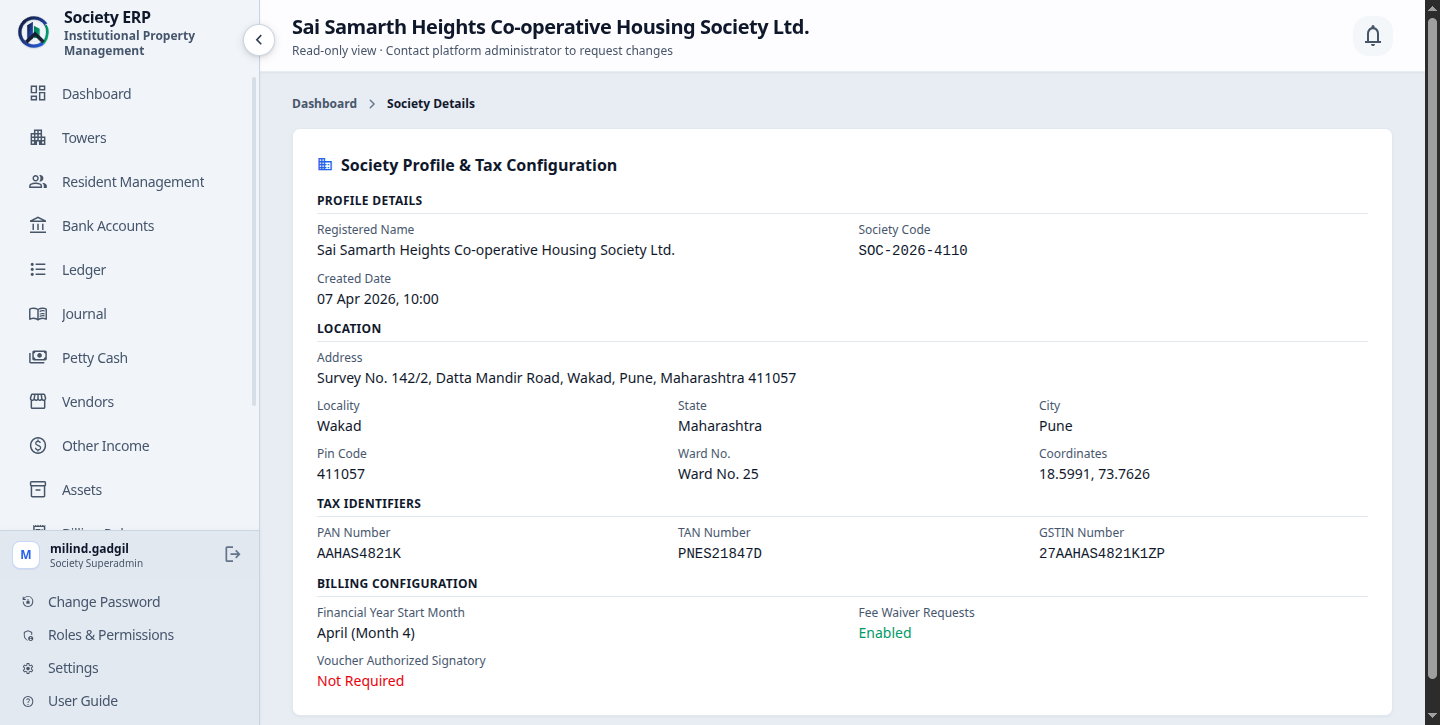
What each part shows
| Profile Details | Registered name, society code and the date the society was created. |
| Location | Address, locality, state, city, PIN code, ward number and map coordinates. |
| Tax Identifiers | PAN (10 characters), TAN (10 characters, needed for TDS) and GSTIN (15 characters). |
| Billing Configuration | Financial year start month, whether fee waiver requests are enabled, and whether vouchers need an authorized signatory. You change these yourself; see chapter 10. |
The same information appears on the Dashboard under Society Profile & Tax Configuration .
Changing the profile
The page is read-only for the society. The name, code, address and tax numbers are set by the Platform Admin when the society is created, because the code, PAN, TAN and GSTIN must each be unique across every society on the platform.
- Compare each field with the society's registration and tax documents.
- If anything is wrong or has changed, send the correct value to the Platform Admin and ask them to update it.
- Reload the page to confirm the change. Invoices downloaded after that carry the new details.
What you can change yourself
The billing configuration and the logo are yours. Open Billing Configuration arrow_forward Open Society Logo arrow_forwardThe society logo
The logo is shown at the top of the sidebar for everyone in your society.
- Go to Settings , then Branding , then the society logo.
- Click Upload Photo and choose the image.
- Click Save Logo .
What works best: a wide logo, about three times as wide as it is tall (for example 630 x 190 px), at least 64 px tall, as a PNG with a transparent background. Anything between 2:1 and 4:1 is accepted. Empty margins around the logo are trimmed for you.
To go back to the default, click Remove and save.