
2. Welcome and tour
What the system does, who uses it, signing in, and finding your way around.
What Society ERP does
Society ERP keeps a housing society's records and accounts in one place. As the Society Superadmin you use it to:
- Describe the society: towers, floors, flats, and the owners, tenants and family members living in them.
- Bill the flats: set charging rules once, generate bills each period, record payments, and let residents pay online.
- Keep the books: every bill, payment, expense and waiver is posted to the ledger for you as a journal voucher.
- Run day-to-day operations: petty cash, vendors and their expenses, other income, and the asset register.
- Report: income and expenditure, balance sheet, defaulters, collections, tax and more, on screen or as PDF and Excel.
- Share the work: give staff their own logins and decide exactly what each one can see and do.
Who uses it
| Role | Who | What they can do |
|---|---|---|
| Society Superadmin | You: the person in charge of the society's account | Everything in the society, including Roles & Permissions and Settings. |
| Manager | Senior society staff | Every module without needing a role. Can approve or reject waivers. |
| Other staff | Accountant, help desk, clerks | Only what the role you give them allows. A staff login with no role, or an inactive role, sees nothing. |
| Flat Owner, Tenant | Residents | Their own invoices and ledger only. They can pay online through the link on the invoice PDF if you have set up Razorpay. |
| Platform Admin | The team that provides the software | Creates the society and your login, and decides which features the society has. Does not work inside your books. |
This guide is written from the Superadmin's seat. Staff can read it too: a chapter applies to them when their role includes that module.
Signing in and staying signed in
- Open the login page and enter the username and password the Platform Admin gave you.
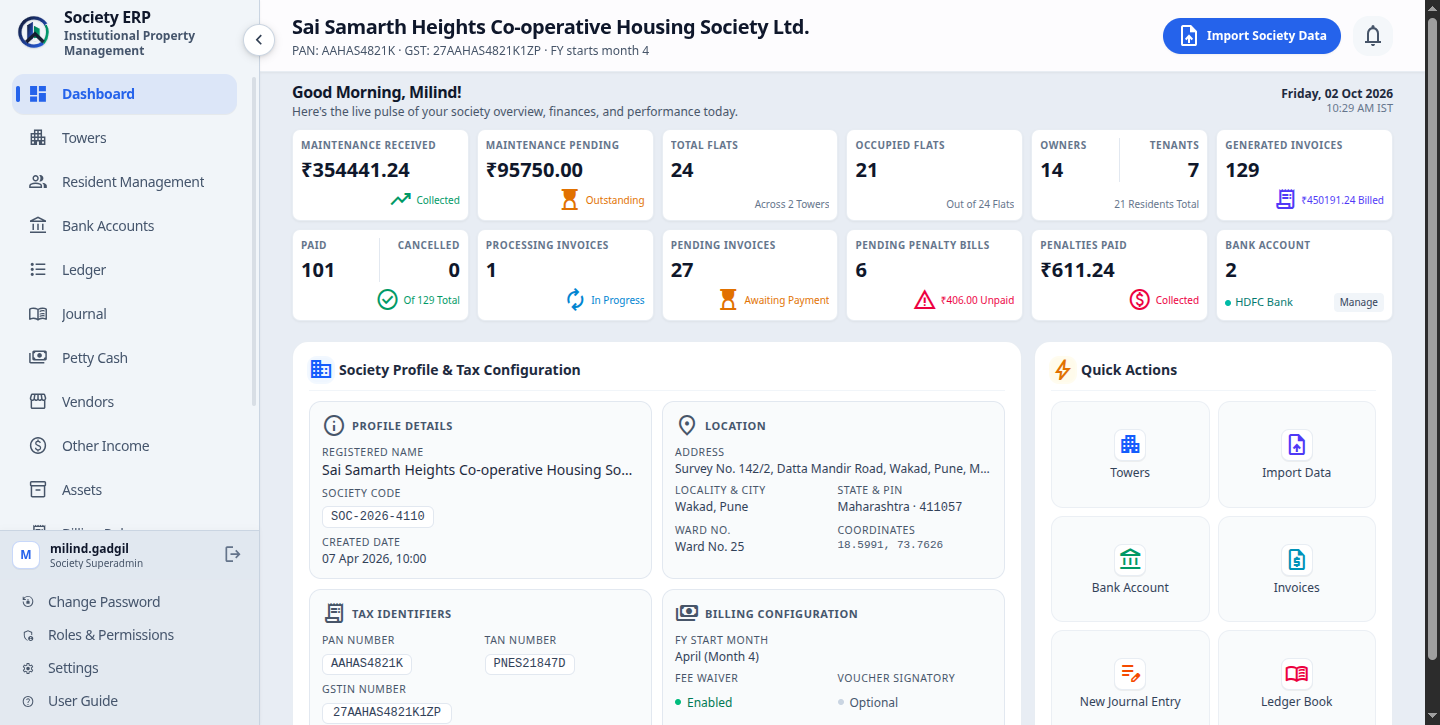
- You land on the Dashboard . If your login does not include the dashboard, you land on the first page you do have.
- To change your password, click Change Password at the bottom of the sidebar.
- To sign out, click the logout icon next to your name at the bottom of the sidebar.
Two things that catch people out
- You are signed out after 30 minutes without activity. Save long forms before stepping away.
- After 5 wrong passwords the login is locked for 15 minutes. Waiting is the only fix; if you have forgotten the password, ask the Platform Admin to reset it.
The sidebar: where everything lives
Every module is one click away in the left sidebar. From top to bottom:
| Dashboard | Society profile at a glance, setup prompts and quick actions. |
| Towers | Towers, their floors and their flats. Residents are added from a flat's page. |
| Resident Management | One directory of every owner, co-owner and tenant. |
| Bank Accounts | The society's bank accounts. |
| Ledger | Ledger accounts and each account's statement. |
| Journal | Journal vouchers: the ones the system posts and the ones you write. |
| Advances | Money paid by flats before a bill, held in a wallet and applied to bills. |
| Petty Cash | The cash vault: top-ups and small expenses. |
| Vendors | Vendor records, contracts and vendor expenses. |
| Other Income | Income that is not a maintenance bill, such as hall bookings. |
| Assets | The asset register and service history. |
| Billing Rules | What each flat is charged and when. |
| Additional Bills | Raise a one-off bill for one flat. Regular bills are generated automatically on each rule's billing day. |
| Invoices | Every bill raised, its status, payments and waivers. |
| Reports | The ten financial and operational reports. |
| Roles & Permissions | Staff logins and what each can do. Superadmin only. |
| Settings | The lists and switches the other modules depend on. |
| User Guide | This guide. |
The arrow at the top of the sidebar collapses it to icons when you need more room.
Alerts along the top
- Warning bell. Lights up when a flat needs attention, for example a flat marked Rented that has no tenant registered. Click it to see the list and jump to the flat.
- Import spinner. Appears on every page while a bulk import is running, so you can keep working and still see it is in progress. Click it to open the import page.
- Settings note. A panel at the top of a module that lists the settings that module depends on. The first time you open the module it lists them all, titled Settings used by this page . After that it appears only while something is missing, titled Some settings for this page are not configured yet , for example Vendors with no vendor categories. Configure takes you straight to the setting, and the cross hides the note.
How every list works
Towers, flats, vendors, billing rules, ledger accounts and the settings lists all behave the same way. Learn it once:
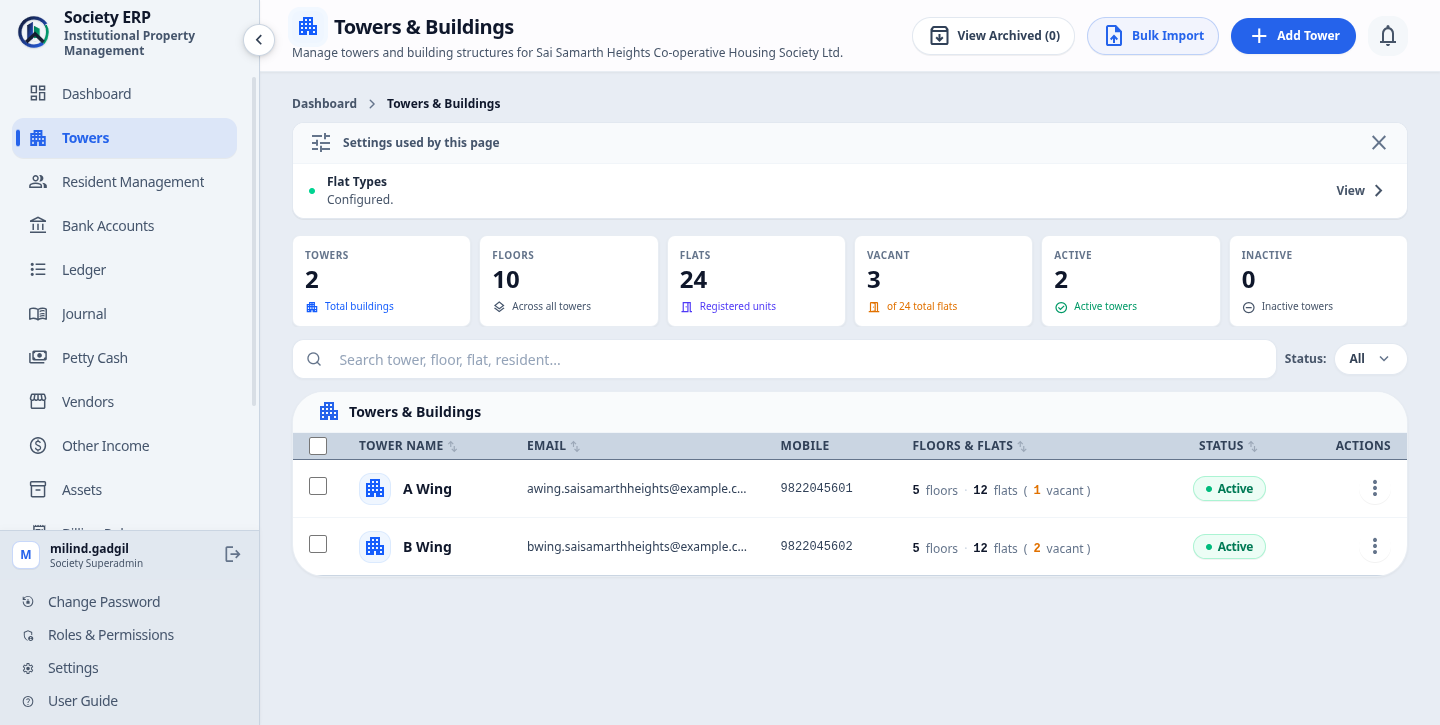
- Find: use the search box and filters above the table; click a column heading to sort; change the page size at the bottom.
- Act on several rows: tick the checkboxes and use the bar that appears to activate, deactivate or archive them together.
- Active / Inactive: an inactive record stays on file but is left out of new work. An inactive flat is not billed; an inactive tower cannot be chosen for a new flat.
- Archive: moves a record out of the everyday list. Open the archived view of the list to see it, and Restore to bring it back. Nothing is lost.
- Blocked actions: you cannot deactivate or archive something that is still in use, for example a ledger account an active billing rule points to. The message tells you what is using it. Past invoices and posted vouchers do not block.
- Delete permanently: offered only on archived records. It cannot be undone, and for a tower, floor or flat it also removes the invoices, waivers and ledger vouchers underneath it.
If a menu item or button is missing
There are two possible reasons:
- The feature is switched off for your society. The Platform Admin chooses which features each society has. A feature that is off is hidden for everyone, the Superadmin included. Ask the Platform Admin to turn it on.
- The staff member's role does not include it. Only for staff logins. Edit their role under Roles & Permissions .
Opening a page you are not allowed to see sends you back to a page you can use rather than showing an error.