
22. Roles and permissions
Creating staff logins and deciding what each one can see and do.
How access works
Whether someone can open a page or press a button is decided by two checks. Both must pass.
| Check | Who decides | What it means |
|---|---|---|
| 1. The feature is on for the society | The Platform Admin | A feature that is switched off is hidden for everyone in the society, the Superadmin included. It also disappears from the permission list described below. |
| 2. The person has the permission | You, through a role | Applies to staff logins. The Superadmin and Managers pass this check automatically for every feature. |
- Society Superadmin and Manager need no role. They can use every feature the society has. Neither can use a feature the Platform Admin has switched off.
- Every other staff member gets access only through a custom role. A staff login whose role is inactive, archived or deleted can still sign in but sees a page saying nothing is available.
- Residents (Flat Owner, Tenant) are not part of this. They see only their own invoices and ledger.
Roles & Permissions is at the bottom of the sidebar and is open to the Superadmin only. It has two parts: Custom Roles and Role Templates .
Open Roles & Permissions arrow_forwardCreating a role and its staff login
A role and the staff member's login are created together, on one form. Each role belongs to one staff member. To give two people the same access, create two roles and apply the same template to both.
- Open Roles & Permissions , then Custom Roles , and click Add Role .
- Under Role Details, enter the Role Name, for example Accounts Clerk, and optionally a Description of up to 500 characters. Leave Active Role ticked.
- Under Staff Account, enter the staff member's Full Name, Email, Username and Password.
- Under Permissions Matrix, either choose a starting point in Apply Template or switch on the permissions one by one.
- Click Create Role . The role is saved and the login is ready to use.
- Give the username and password to the staff member yourself. The system does not email them.
- Username: must be unique across the whole platform. The form checks it as you type and suggests alternatives if it is taken.
- Email: must not already be used by another login or resident.
- Password: any password is accepted, regardless of length or strength.
Changing a staff member's details or password
Open the role with Edit . The name, email and username can be changed in place. To set a new password click Change Password in the Staff Account panel, enter the New Password and click Save Changes . Staff cannot change their own password, so a forgotten password is always reset here.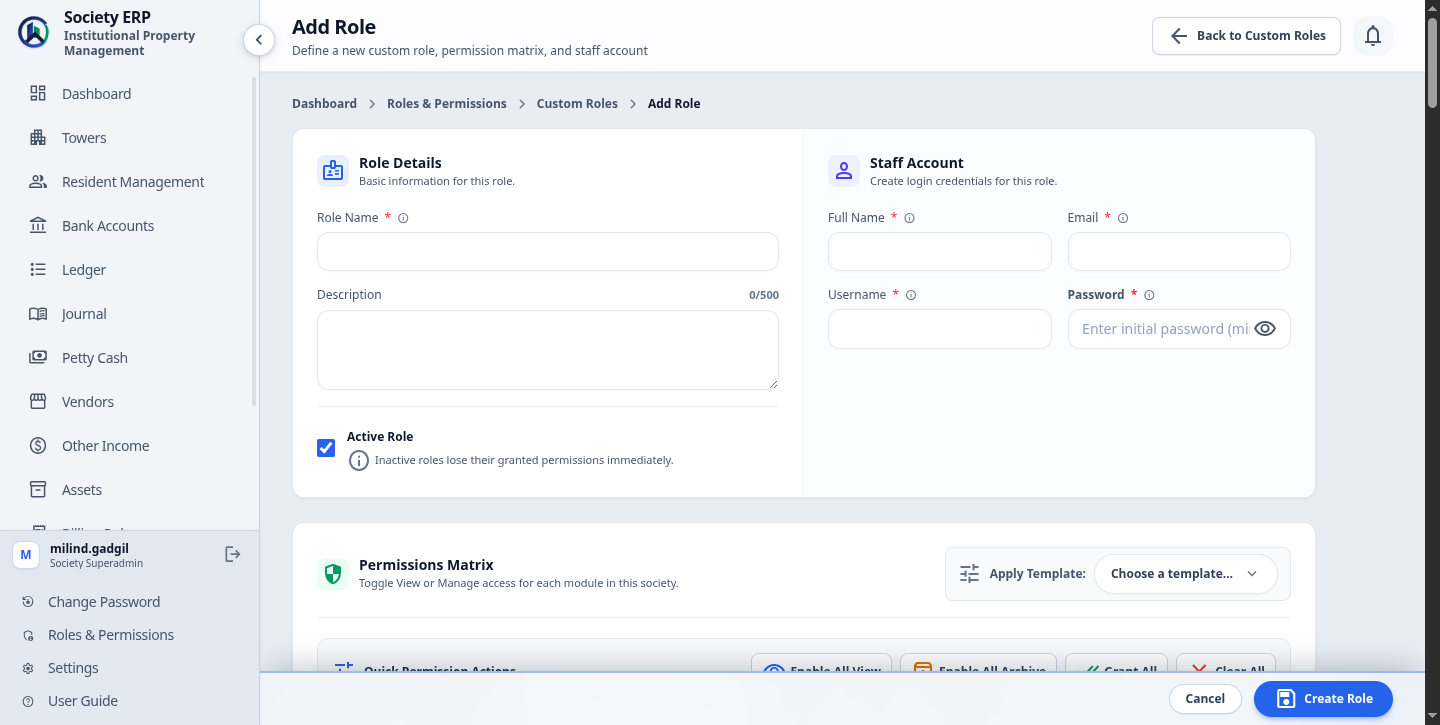
The permission matrix
The matrix lists every feature the society has, grouped by area. Each row has one or more switches:
| View | See the page and its records. The sidebar item appears only when View is on. |
| Add | Create new records. |
| Edit | Change existing records, including switching them between Active and Inactive. |
| Archive | Archive and restore records, and delete archived records permanently. On the two resident rows this switch is labelled Move Out. |
| A single switch | Some rows are one action rather than a list of records, for example Bulk Import, Generate Bills, Record Payment or an approval. They have one switch carrying the row's own name. |
| Export | Each report row has two switches: View opens the report on screen, and Export also allows its PDF and Excel downloads. Turning Export on turns View on with it. |
Add, Edit and Archive cannot be switched on until View is on for the same row. Turning View off clears them.
The Quick Permission Actions bar above the list fills the matrix in one click:
- Enable All View : switches on View everywhere.
- Enable All Archive : switches on View and Archive everywhere.
- Grant All : switches on everything.
- Clear All : switches everything off.
Nothing is saved until you click Create Role or Save Changes in the bar at the bottom of the page. A change to a role takes effect on the staff member's next page load.
What each permission covers
These are the groups and rows of the matrix. A row is missing from your screen when the Platform Admin has switched that feature off for the society.
| Row | Switches | What it allows |
|---|---|---|
| Dashboard | ||
| Dashboard | View | The society dashboard and its summary figures. |
| Society Structure | ||
| Towers | View, Add, Edit, Archive | Tower records. |
| Floors | View, Add, Edit, Archive | Floors within towers. |
| Flats | View, Add, Edit, Archive | Flat records. Owners, tenants and family members are added and edited under this permission. |
| Bulk Import | Bulk Import | Importing towers, floors, flats and residents from a spreadsheet. |
| Warning Notifications | View | The warning bell in the top bar and the warning list. |
| Residents | ||
| Resident Directory | View | The Resident Management directory. |
| Flat Owners/Tenants | View, Move Out | Owner, co-owner and tenant records. Only Move Out is controlled here; adding and editing follow the Flats row. |
| Family Members | View, Move Out | Family member records, on the same terms. |
| Finance: Banking | ||
| Bank Accounts | View, Add, Edit, Archive | The society's bank accounts. |
| Finance: Ledger & Journals | ||
| Ledger | View, Add, Edit, Archive | Ledger accounts and each account's statement. |
| Journal Entries | View | Browsing journal vouchers. |
| Journal Entries: Create Draft | View, Add, Edit | Writing and editing draft vouchers, and attaching signed copies. |
| Journal Entries: Post/Unpost | One switch | Posting a draft, or sending a posted voucher back to draft. |
| Journal Entries: Reverse | One switch | Reversing a posted voucher. |
| Journal Entries: Cancel/Archive | One switch | Cancelling a voucher or archiving a draft. |
| Finance: Petty Cash | ||
| Petty Cash | View | The petty cash page, vault balance and history. |
| Petty Cash: Fund Setup | One switch | Setting up the vault and its limits. |
| Petty Cash: Top-Up | One switch | Recording top-ups, and refunding them. |
| Petty Cash: Expense Entry | One switch | Logging expenses. |
| Petty Cash: Expense Approval | One switch | Approving or rejecting expenses that are waiting for approval, and refunding posted expenses. |
| Petty Cash: Period Close | One switch | Closing a petty cash period. |
| Finance: Vendors | ||
| Vendors | View | The vendor list, contract warnings and vendor expenses. |
| Vendors: Manage Records | View, Add, Edit, Archive | Adding, editing and archiving vendors. |
| Vendors: Log Expense | One switch | Logging vendor expenses for approval. |
| Vendors: Expense Approval | One switch | Approving, rejecting and refunding vendor expenses. |
| Finance: Other Income | ||
| Other Income | View, Add | Viewing and logging income that is not a maintenance bill. |
| Other Income: Approval | One switch | Approving, rejecting and refunding other income entries. |
| Assets | ||
| Assets | View | The asset register and each asset's service history. |
| Assets: Manage Records | View, Add, Edit, Archive | Adding, editing and archiving assets. Adding an asset can post its purchase to the ledger. |
| Assets: Service Log | One switch | Logging service and maintenance entries. |
| Billing | ||
| Billing Rules | View, Add, Edit, Archive | Billing rule definitions. |
| Generate Bills | Generate Bills | Running bill generation and raising additional bills. |
| Invoices | View | Viewing and downloading invoices. |
| Record Payment | Record Payment | Recording payments, marking them paid or failed, and cancelling invoices. |
| Advance Payments | View, Add | The advance register, flat wallets and recording an advance. |
| Advance Payments: Clear/Fail | One switch | Marking a cheque or transfer advance cleared or failed. |
| Advance Payments: Refund & Apply | One switch | Refunding unused advance and applying a wallet to open bills by hand. |
| Advance Payments: Opening Balances | One switch | Importing advances held before go-live. |
| Waivers | View, Add | Requesting a waiver on an invoice. Approving or rejecting is not included. |
| Reports | ||
| Income & Expenditure Statement, Balance Sheet, Defaulter List, Collection Efficiency, Tax Report, Flat-wise Ledger, Expense Register, Vendor Dues, Waiver Register, Penalty Register | View, Export | One row per report. View opens it on screen; Export also allows PDF and Excel. |
| Settings | ||
| Notification Templates | View, Add, Edit, Archive | Reserved. There is no notification template screen in the society's menu yet, so this row has no effect today. |
| Billing Configuration | One switch | The society-wide billing settings. |
| Razorpay Payment Gateway | One switch | The society's Razorpay keys and webhook. |
| Journal Voucher Configuration | View, Add, Edit, Archive | The society's voucher types and the Voucher Mapping page. Edit is needed to open Voucher Mapping at all, and to change a voucher type. |
| Fee Types, Flat Types, Billing Frequencies, Document Labels, Vendor Categories, Asset Categories, Asset Service Types | View, Add, Edit, Archive | One row per settings list. |
| Administration | ||
| Roles & Permissions | View | Listed for completeness. The Roles & Permissions screens open for the Superadmin only, whatever this switch says. |
Permissions that depend on each other
Some rows are useless without another. A staff member who can edit floors but cannot see towers has no way to reach a floor. The matrix enforces this for you: a dependent row stays greyed out, with the note Requires … to be enabled first, until View is on for the row it depends on.
| These rows | Need this row first |
|---|---|
| Floors | Towers |
| Flats | Floors |
| Resident Directory, Flat Owners/Tenants, Family Members, Warning Notifications, Bulk Import | Flats |
| Journal Entries: Create Draft, Post/Unpost, Reverse, Cancel/Archive | Journal Entries |
| Petty Cash: Fund Setup, Top-Up, Expense Entry, Expense Approval, Period Close | Petty Cash |
| Vendors: Manage Records, Log Expense, Expense Approval; Vendor Categories | Vendors |
| Other Income: Approval | Other Income |
| Assets: Manage Records, Service Log; Asset Categories; Asset Service Types | Assets |
- The chain runs all the way up. Flats need Floors, and Floors need Towers, so a role that works with residents needs View on Towers, Floors and Flats.
- Add, Edit and Archive follow the same rule between Towers, Floors and Flats: Add on Floors needs Add on Towers, and so on.
- Turning a row off turns off everything under it. Switching off View on Towers clears Floors, Flats and every resident row. The same clean-up is applied again when the role is saved.
Role templates
A template is a saved set of switches. Choosing one in Apply Template fills the matrix, and you can then adjust any switch before saving. Your society starts with its own copies of three templates:
| Accountant | Dashboard. Bank Accounts and Ledger in full. Journal Entries to view. Billing Rules to view, add and edit. Generate Bills. Invoices to view. Billing Configuration. Fee Types, Flat Types, Billing Frequencies, Document Labels and Journal Voucher Configuration in full. View and Export on all ten reports. |
| Help Desk | Dashboard. Towers, Floors and Flats in full. Resident Directory to view. Flat Owners/Tenants and Family Members to view and Move Out. Invoices to view. Defaulter List and Flat-wise Ledger to view. |
| Read Only | View on every row that has a View switch, and nothing else. |
To make your own template:
- Open Roles & Permissions , then Role Templates , and click Add Template .
- Enter a Name, which is what appears in the Apply Template list, and optionally a Description.
- Set the switches in the Permissions Matrix and click Create Template .
- Templates are yours. The three defaults can be edited or archived like any other, and your changes do not affect any other society. A template name can be used only once in your society.
- A template is a starting point, not a link. Editing a template later does not change roles that were created from it. To update an existing role, open it and apply the template again, or change its switches directly.
- Archived templates leave the Apply Template list. View Archived shows them, with Restore and permanent delete.
Deactivating or archiving a role
Use the three-dot menu on the role's row in Custom Roles .
| Action | What happens to the role | What happens to the login |
|---|---|---|
| Deactivate | Stays in the list, marked Inactive. Activate brings it back. | Loses every permission at once. The staff member can still sign in but sees only a page saying nothing is available for their account. |
| Archive | Is deactivated and moved to the archived list. | The same as Deactivate. |
| Restore | Returns to the main list, still Inactive. | No access until you also click Activate . |
| Delete permanently | Offered on archived roles only. The role and its switches are removed for good. | The staff member loses the role and is left with a login that can see nothing. |
When a staff member leaves
Deactivate or archive their role. That removes their access straight away while keeping their name on the records they created. If you also want to make sure the old password is useless, change it on the role form first.What cannot be handed to a role
- Approving or rejecting a waiver. The Waivers row only lets staff request a waiver. Deciding one needs the separate Waivers — Approve/Reject switch, which is off unless you turn it on. The Superadmin and Managers can always decide.
- Requesting a waiver while waivers are switched off. If waivers are turned off in Billing Configuration, staff cannot request one even with the Waivers permission. The Superadmin and Managers still can.
- Roles & Permissions itself. Only the Superadmin can create roles, change switches or reset staff passwords. Managers cannot open these screens.
- Anything the society does not have. A feature the Platform Admin has switched off cannot be granted. If it is switched back on later, roles that had it before get it back without any change from you.
- The Superadmin and Manager logins. These are set up by the Platform Admin. A society has one Superadmin.
Common problems
- A switch is greyed out: the row it depends on is off, or View on the same row is off. Turn those on first.
- A row is not in the matrix at all: the feature is switched off for the society. Ask the Platform Admin.
- The staff member signs in and sees "Nothing available for your account": their role is inactive or archived, or it has no switches on for a feature the society has.
- A proof, receipt or attachment will not open for a staff member: uploaded files follow the View permission of the feature they belong to. A petty cash bill needs Petty Cash View, a flat's documents need Flats View, and so on. Having the link is not enough.
- The staff member has the page but not the button: View is on but Add, Edit or Archive is not.
- "A user with this username already exists": usernames are shared across all societies. Pick one of the suggestions.
- The form has no Staff Account panel when editing: the role no longer has a staff login attached. Create a new role for the staff member.