
23. What residents see
The resident login: My Invoices, paying online and My Ledger.
What a resident login is
A resident login belongs to a Flat Owner or a Tenant. It is self-service and read-only: the resident can look at the bills raised on their own flat, download them, pay them online and follow their account balance. They cannot see any other flat, any other resident, or any of the society's screens.
Their sidebar has two items and nothing else:
| My Invoices | Every bill raised on the flats they are registered on. This is the page they land on after signing in. |
| My Ledger | A running statement of charges, penalties, payments and waivers for their flat. |
You do not have these two menu items yourself. The screens behind them are the ones you know as Invoices and the Flat-wise Ledger report, narrowed to the resident's own flat.
Both depend on the society's features
My Invoices appears only while the Invoices feature is on for the society, and My Ledger only while the Flat-wise Ledger report is on. If the Platform Admin switches both off, a resident who signs in sees a page saying nothing is available.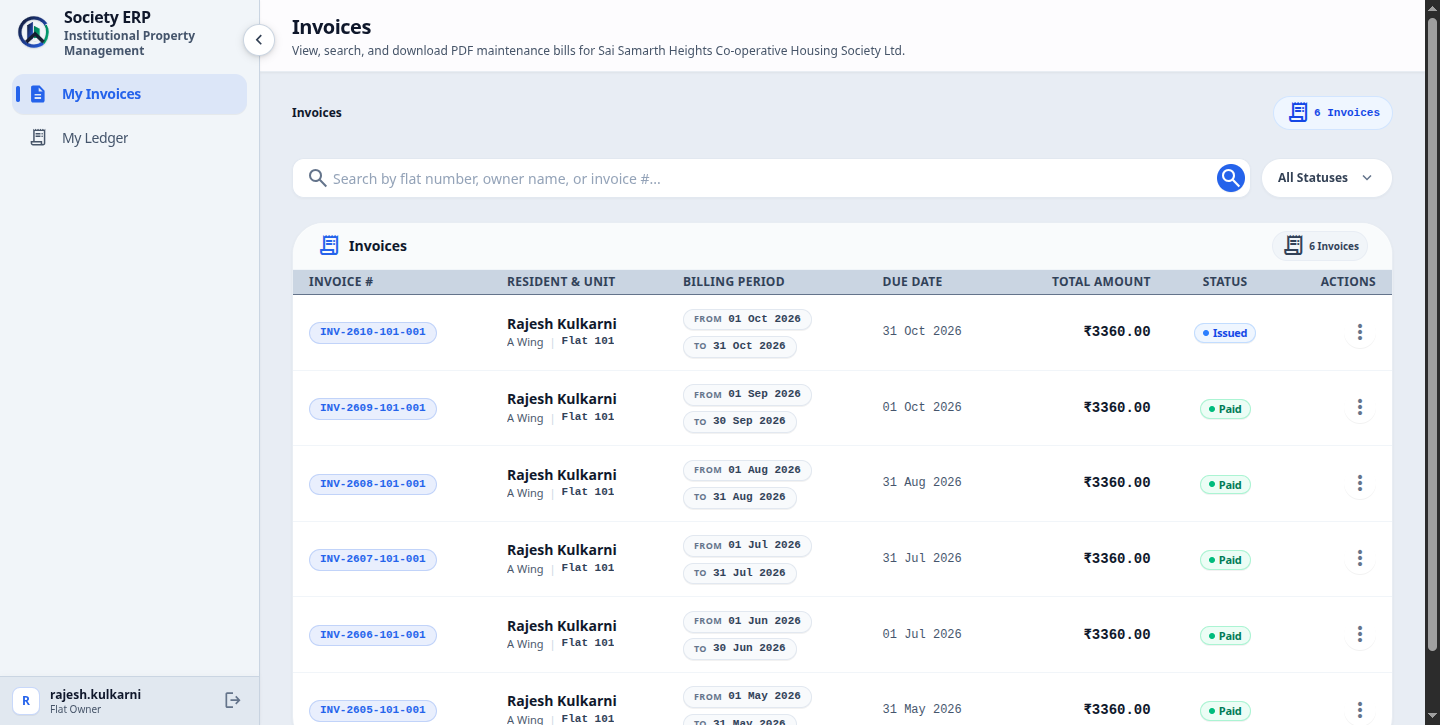
How a resident gets a login
Registering an owner or tenant on a flat records the person. It does not create a login for them. There is no button on the society's screens to create a resident login or to set a resident's password.
A resident login is created and linked to the flat user by the Platform Admin or the support team. Ask them, giving the flat and the resident's name and email.
Once it is linked you can see it in two places:
- On the flat's page, the username appears under the person's name, and the edit form shows it as Linked Login Account.
- On the resident's profile, Login Account shows the username, or Not linked when there is none, and Last Login shows when they last signed in.
- One login, several flats. A login linked to the same person on more than one flat sees the invoices of all of them under My Invoices.
- Moving out. Once a resident is moved out of a flat, their login no longer shows that flat's invoices.
- Deactivating or archiving a flat (or its floor or tower) deactivates the residents on it. While they are inactive, the login shows no invoices or ledger for that flat.
- Passwords. Residents have no Change Password option. A forgotten password is reset by the Platform Admin.
- Sign-in rules are the same as yours: signed out after 30 minutes without activity, and locked for 15 minutes after 5 wrong passwords.
My Invoices
The list shows one row per bill with the Invoice #, Billing Period, Due Date, Total Amount and Status. The resident can search by invoice number and filter by status: Issued, Processing, Paid, Partially Paid, Overdue, Cancelled, Waived or Penalty Applied.
The three-dot menu on each row offers:
- View Invoice : opens the bill.
- Download PDF : the printable tax invoice.
Only invoices for the resident's own flats are listed. Typing another invoice's address into the browser does not open it.
Open Invoices arrow_forwardThe invoice page
The resident sees the same bill you do, without the staff controls:
- Itemized Charges Breakdown: each charge with its basis, rate, base amount, GST and total.
- Late Penalty Breakdown: shown once the invoice is overdue, with the policy, the number of periods and the penalty for each charge.
- Totals: base amount, GST, late penalty, amount paid, amount waived and the Balance Due.
- Waivers: a waiver that is waiting for a decision, and the Waiver History of approved and rejected ones.
- Payment History : appears once at least one payment has been recorded. It lists each payment with its date, mode, status, reference and amount.
- Download PDF : the tax invoice.
- Download Receipt : the receipt for the latest successful payment. Receipts for earlier payments are in Payment History, under Receipt .
The figures are always current. Opening an invoice rechecks whether it is overdue and recalculates the penalty to today.
What the resident does not get on this page: the Payment, Cancel and Waiver tabs, Mark Paid and Mark Failed, and the waiver approval panel. Those are for staff.
Paying online
Online payment is available only when the society has set up and enabled its own Razorpay account. Without it, residents pay by cash, cheque, bank transfer or UPI as before and your staff record the payment.
With Razorpay enabled, the resident has two ways to pay.
From the invoice page:
- The resident opens the unpaid invoice from My Invoices.
- Beside the invoice, a card shows the Amount Due and a Pay Online button.
- They click it and pay in Razorpay's window by UPI, card or netbanking. The payment is for the full amount due.
- The page reloads with the invoice Paid. The payment appears in Payment History with its receipt, the ledger voucher is posted and the resident is emailed a confirmation.
From the invoice PDF: under PAY ONLINE there is a payment link for the full balance. It opens Razorpay's payment page and needs no sign-in, so you can also send the PDF to a resident.
- Both appear only while there is something to pay. A paid, cancelled or Processing invoice has no button, and a paid or cancelled one has no link in its PDF.
- Part payments are taken by staff, from the payment panel on the invoice page (chapter 16). Residents always pay the full amount due.
- A payment made through the PDF link is confirmed by Razorpay's webhook. If the webhook is not set up, the money reaches your Razorpay account but the invoice stays unpaid. Follow the Razorpay setup guide to the end.
My Ledger
My Ledger is the resident's statement of account for their flat. It is the Flat-wise Ledger report with the flat already chosen and the tower, floor and flat filters removed.
- Summary tiles: Flat, Total Invoiced, Penalties, Total Paid and Closing Balance.
- Balance Trend: a small chart of the balance over the period.
- Ledger Entries: one line per bill, payment and waiver, with the columns Date, Description, Status, Charge, Penalty, Payment, Waiver and Balance. An Opening Balance line carries forward anything owed before the start date.
- Dates: the statement opens on the current month. The resident changes the start and end date and clicks Apply .
- Export: PDF and Excel are always available to a resident for their own ledger.
One flat only
My Ledger shows a single flat. A resident whose login is linked to several flats sees the invoices of all of them under My Invoices, but the ledger of only one. For the others, send them the Flat-wise Ledger export from Reports.What residents cannot do
Residents cannot raise a waiver themselves
There is no waiver request form on the resident's screens. A resident who wants a charge reduced or written off asks the society office. A staff member with the Waivers permission submits the request on the invoice, and the Superadmin, a Manager, or a staff member with the Waivers — Approve/Reject permission approves or rejects it. The resident then sees the result on the invoice and is emailed when a waiver is approved.- Record an advance or ask for a refund on screen. Where the society has Advance Payments switched on, residents can see their flat's advance wallet and receipts, but staff record, apply and refund advances.
- Record a payment, upload proof of payment or mark a cheque as cleared.
- Cancel or dispute an invoice on screen.
- Edit their own name, email, mobile, family members or documents. Staff do this on the flat's page.
- See the dashboard, other residents, the society's accounts, reports other than their own ledger, or this guide.
- Change their own password.
What residents are told by email
Residents are emailed without any action from you when a bill is generated, three days before a bill falls due, when a payment is received, when a penalty is applied, when a waiver is approved, and before one of their documents expires. The email goes to the owner, co-owner, tenant and family members of the flat who have an email address on file, whether or not they have a login. The full list is in the Troubleshooting chapter.
Common problems
- The resident says they have no login: none has been linked. Check Login Account on their profile; if it says Not linked, ask the Platform Admin.
- The resident signs in and sees no invoices: either no bill has been generated for the flat yet, or the login is linked to a different flat user.
- My Ledger does not open: the login has no active registration on a flat, for example because the resident was moved out or the flat was deactivated.
- There is no payment link in the PDF: Razorpay is not enabled for the society, the invoice is already paid or cancelled, or Razorpay could not be reached when the PDF was made. Download the PDF again.
- The resident paid online but the invoice is still unpaid: the Razorpay webhook is missing or wrong. Check the webhook settings, and find the payment in your Razorpay dashboard before recording anything by hand.
- The resident sees a cheque payment as Processing: staff recorded it and it is waiting to be marked paid once the cheque clears.