
6. Bulk import
Loading towers, flats and residents from a spreadsheet, and fixing rows that fail.
What bulk import does
Bulk import reads a spreadsheet with one row per flat and creates everything that row mentions: the tower, the floor, the flat, its owner, co-owner and tenant, and their family members. Towers and floors that already exist are reused, and a flat that already exists is updated, so the same file can be corrected and imported again.
Open Bulk Import arrow_forward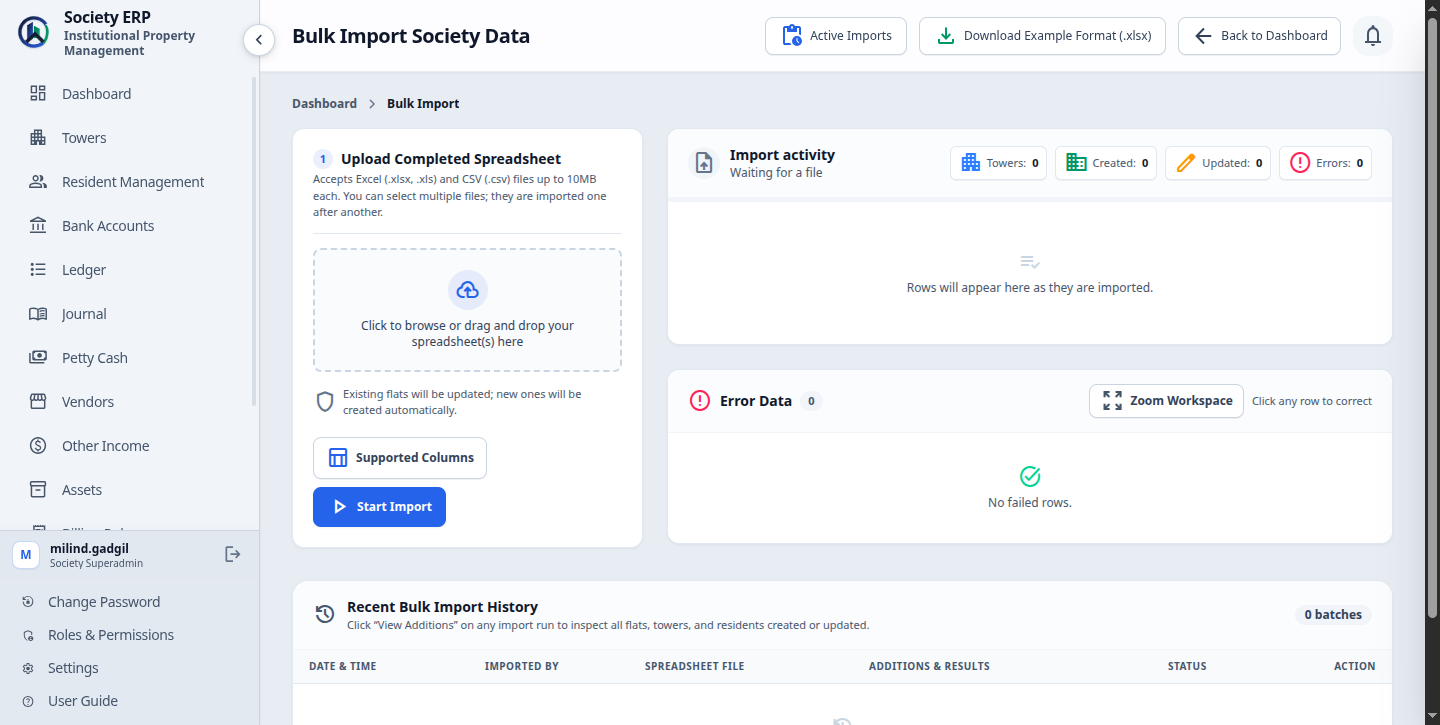
Step 1: Prepare the spreadsheet
- Click Download Example Format (.xlsx) . The file has the right column headings and three sample rows.
- Replace the sample rows with your flats. Keep the heading row as it is.
- Save it as Excel (.xlsx) or CSV. Old-format .xls files are refused, so re-save those as .xlsx. The limit is 10 MB.
| Column | Needed? | What to enter |
|---|---|---|
| Tower Name | Required | Building or wing name. Created if new. |
| Tower Phone, Tower Email | Optional | Contact for the tower. |
| Floor Name | Required | For example 1st Floor or Ground. Created if new. |
| Floor Position | Optional | A number that sets the floor's place in the list. |
| Is Parking Floor | Optional | Yes or No. |
| Flat Number | Required | For example 101 or A-202. |
| Flat Type | Optional | 1BHK, 2BHK, 3BHK, 4BHK, STUDIO, PENTHOUSE or OTHER. A name not in your Flat Types list is added to it. |
| Area Sq.Ft. | Optional | Chargeable area. Needed for per-sq.ft. billing. |
| Ownership Type | Required | OWNER_OCCUPIED, RENTED, VACANT or RESERVED, typed exactly. |
| Parking Slot No. | Optional | For example P-101. |
| Owner name, mobile, email | Conditional | The name is required for an OWNER OCCUPIED flat. |
| Co-Owner name, mobile, email | Optional | The second owner. |
| Tenant name, mobile, email | Conditional | The name is required for a RENTED flat. |
| Family Members | Optional | Names separated by commas. |
Supported Columns on the page shows the same list.
Check before uploading
- Mobile numbers are 10 digits.
- No email or mobile appears on two different people. The same owner on several flats is fine if the name is typed identically each time.
Step 2: Upload and import
- Under Upload Completed Spreadsheet , click the box or drag your file onto it. You can select several files; they are imported one after another.
- Click Start Import .
- Watch Import activity: rows appear as they are processed, with running counts of towers, created, updated and errors.
- The import runs in the background. A spinner in the top bar of every page shows it is still going.
- Only one import runs at a time for a society. It is listed under Active Imports, where Pause / Cancel stops one that is stuck or no longer wanted. Rows already imported stay imported.
Step 3: Fix the rows that failed
A bad row never stops the import. It is skipped and held in the Error Data table with the reason, while every good row goes in.
- Click a row in Error Data to open Correct Import Row. The validation error is shown at the top.
- Fix the value. If the tower or floor does not exist yet, add it from the same form with Add Tower or Add Floor .
- Click Save & Retry . If the row now passes, it is imported and leaves the table. If not, it stays with the new error.
- Use Discard Row for a row you do not want at all.
Zoom Workspace opens the error table on a full page, which is easier when there are many rows. Rows left unfixed stay in the table across later imports until you correct or discard them.
Import history
Recent Bulk Import History lists each run: when, who, which file, what it added, and its status.
| Queued | Waiting to start. |
| Running | In progress. |
| Success | Every row imported. |
| Partial / Warnings | Some rows imported; the rest are in Error Data. |
| Failed | Nothing usable was imported; the batch shows why. |
| Cancelled | Stopped by a user. |
View Additions on a run lists every tower, flat and resident it created or updated.
Common problems
- The import stays Queued and says it is waiting for a worker: the background service that runs imports is not running on the server. Contact the Platform Admin; the import starts by itself once the service is back.
- The file is rejected at upload: it is not .xlsx or .csv, it is too large, or its heading row was changed. Start again from the example file.
- An owner-occupied row fails with a missing owner: give the owner's full name, or change the ownership type to VACANT.
- An email or mobile is "already in use": it belongs to someone else on the platform. Correct it in the error row and retry.