
16. Online payments (Razorpay)
Connecting the society's own Razorpay account so residents can pay online.
What online payments are
The system can collect invoice payments through Razorpay: UPI, cards and netbanking. Each society connects its own Razorpay account, so the money is settled by Razorpay directly to the society's bank account. Nothing passes through the software provider.
Once connected:
- every unpaid invoice's PDF carries a payment link,
- the invoice page gains a Pay Online button,
- a successful payment is recorded on the invoice by itself, with its receipt and ledger entry, without anyone typing it in.
Online payments are optional. Without them, payments are recorded by hand as in chapter 13.
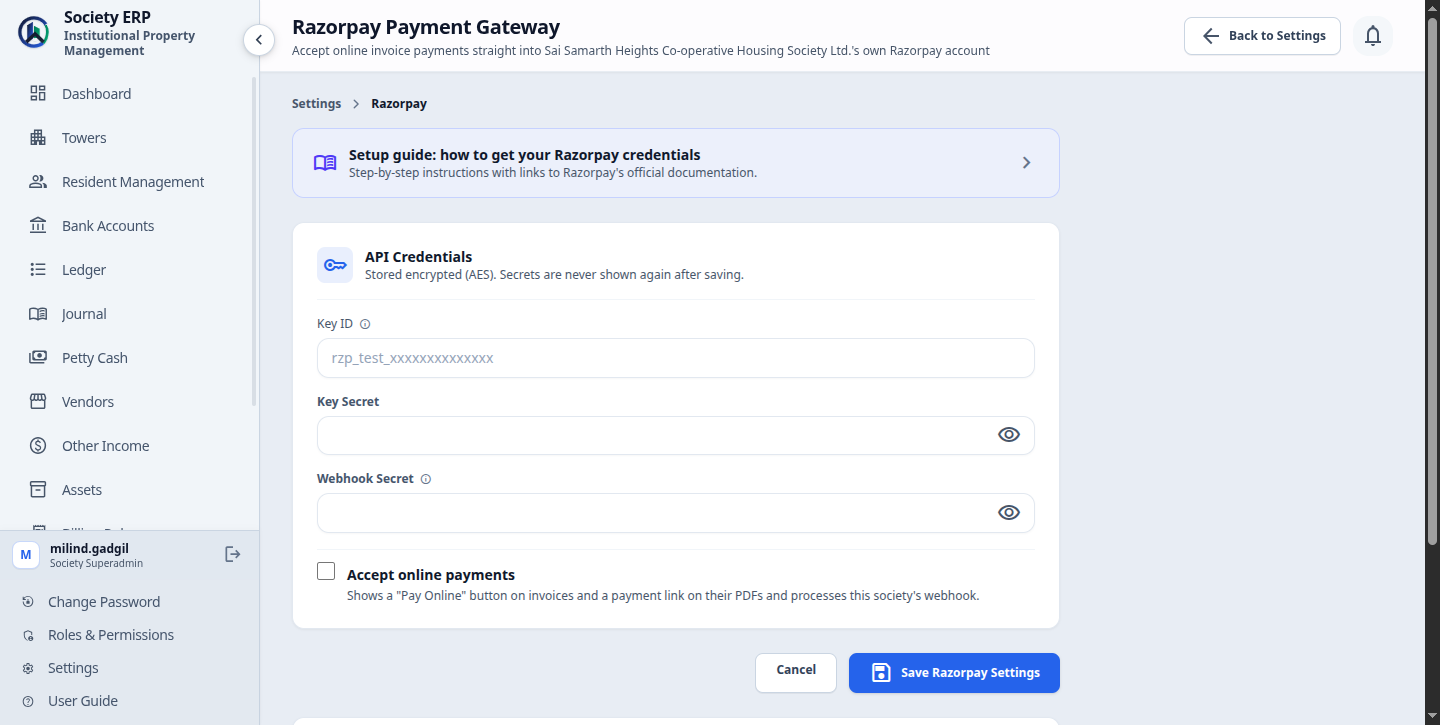
What you need
A Razorpay account in the society's name, with its KYC completed for live payments, and three values from it:
| Key ID | Identifies the society's Razorpay account. Starts with rzp_test_ for Test Mode or rzp_live_ for real payments. |
| Key Secret | The password that goes with the Key ID. Razorpay shows it only once, when the key is generated. |
| Webhook Secret | A long random string you make up yourself and enter in both Razorpay and this system. It proves that payment messages really come from Razorpay. |
All three are stored encrypted. The two secrets are never shown again after saving.
Setting it up
The app has its own step-by-step Razorpay Setup Guide, with your society's webhook URL filled in and links to Razorpay's official instructions. Follow that page for the details. In outline:
- Open Settings and, under Online Payments, click Razorpay Payment Gateway . Keep the page open. The setup guide is the first link on it.
- Sign in to the Razorpay Dashboard and choose Test Mode or Live Mode.
- In Razorpay, under Account & Settings, API Keys, generate a key. Copy the Key ID and Key Secret into the settings page straight away.
- On the settings page, under Your Webhook URL, click Copy .
- In Razorpay, under Account & Settings, Webhooks, add a new webhook. Paste the URL, type a secret of your choice, and tick the four events: payment.captured, payment.failed, order.paid and payment_link.paid.
- Enter the same secret in Webhook Secret on the settings page.
- Tick Accept online payments and click Save Razorpay Settings .
- Click Test Connection . "Connected to Razorpay successfully" confirms the Key ID and Key Secret.
Try it in Test Mode first
Set everything up with Test Mode keys and pay a real invoice with Razorpay's test card, as described in the setup guide. No money moves. When it works, generate Live keys, create a second webhook in Live Mode, and replace the three values. Test and Live each have their own keys and their own webhook.The settings page
| Field or button | Meaning |
|---|---|
| Key ID | Must start with rzp_live_ or rzp_test_. Once saved it is shown masked. |
| Key Secret, Webhook Secret | Always shown empty. Leave a field blank to keep the saved value; type a new value to replace it. |
| Accept online payments | The master switch. Ticked: the Pay Online button and the payment link appear and Razorpay's messages are processed. Unticked: online payment is off but the keys stay saved. It cannot be ticked until all three values are saved. |
| Your Webhook URL | The address Razorpay reports payments to. It is unique to your society. Copy it exactly. |
| Test Connection | Checks the saved Key ID and Key Secret with Razorpay. It does not test the webhook. |
| Remove Credentials | Deletes the saved keys and switches online payments off. Payments already recorded are not affected. |
The page is open to the Superadmin and Manager, and to staff whose role has the Razorpay Payment Gateway permission.
How a resident pays
Through the payment link on the bill. When online payments are on, the invoice PDF of any invoice with a balance carries a Pay Online block with a link reading "Pay ₹ ... online (UPI / Card / Netbanking)". A resident signs in, opens My Invoices , downloads the invoice PDF and follows the link to Razorpay's payment page. You can also send the PDF to the resident yourself.
- The link is for the full balance due on the day the PDF was downloaded, late penalty included. It does not accept part payment.
- The same link is reused while the balance is unchanged. When the balance changes, the next PDF carries a new link for the new amount.
- No link is printed on a Paid or Cancelled invoice.
Through the Pay Online button. On the invoice page a Pay Online box opens Razorpay's checkout window on the spot. Residents see it on their own unpaid invoices and pay the full amount due. People who can record payments (the Superadmin, the Manager and staff with the Record Payment permission) see it below the payment panel and can use it at the office counter, including for a part payment:
- Open the unpaid invoice.
- Check Amount Received in the Payment tab. It holds the full balance.
- Click Pay Online and complete the payment in the Razorpay window.
- The page reloads with "Payment received. Thank you!" and the invoice updated.
The button is not offered while the invoice is Processing a cheque or bank transfer, or once it is Paid or Cancelled.
Open Invoices arrow_forwardPartial payments
The Pay Online button charges whatever is in Amount Received. To take a part payment, type a smaller amount there before clicking the button. The amount must be more than zero and not more than the balance due.
After a part payment the invoice is Partially Paid and can be paid again, online or by hand, until the balance is cleared. The payment link in the PDF always asks for the whole balance.
What is recorded when a payment succeeds
| Payment | Added to the invoice's Payment History with mode Payment Gateway, status Success, and Razorpay's payment ID as the reference. |
| Receipt | Numbered like any other receipt and available from Download Receipt . |
| Invoice | Becomes Paid, or Partially Paid if a balance remains. |
| Ledger | Debits the ledger linked to the Payment Gateway mode (the Bank Accounts Ledger unless you changed it) and credits Unit Receivables. |
| Notification | The flat's residents are told the payment was received. |
Online payments never go through Processing. They are counted the moment Razorpay confirms them.
Razorpay's fees and settlement
The invoice is credited with the full amount the resident paid. Razorpay pays the society's bank later and deducts its fee. If you want the books to show this, link the Payment Gateway mode to a separate ledger account under Payment Ledger Settings, and move the money to the bank ledger with a journal voucher when the settlement arrives, booking the fee as an expense.The webhook and why it matters
A webhook is a message Razorpay sends to the system when something happens to a payment. The system learns about a payment in two ways:
- From the checkout window. When a payment made with the Pay Online button succeeds, the page reports it straight back.
- From the webhook. Razorpay reports the payment on its own, a moment later.
Whichever arrives first records the payment. The other finds it already recorded and does nothing, so a payment is never counted twice.
Payment links depend on the webhook
A payment made through the link in the PDF happens on Razorpay's own page, so the webhook is the only way the system hears about it. If the webhook is missing, has the wrong secret, or does not have the payment_link.paid event ticked, the resident's money reaches Razorpay but the invoice stays unpaid.- Every webhook message is checked against your Webhook Secret. A message with the wrong signature is refused.
- A failed payment attempt changes nothing on the invoice. The resident can simply try again.
- The webhook URL must be reachable from the internet over HTTPS.
- Webhooks are ignored while Accept online payments is unticked.
Common problems
- "Razorpay rejected the Key ID / Key Secret": the pair does not match, or one was mistyped. Generate a new key in Razorpay and enter both values again.
- "Key ID must start with rzp_live_ or rzp_test_": you pasted something other than the Key ID.
- "... is required to accept online payments": all three values must be saved before Accept online payments can be ticked.
- "Stored credentials could not be decrypted": the server's encryption key was changed. Enter all three values again.
- A resident paid by link but the invoice is still unpaid: the webhook did not arrive. Check in the Razorpay Dashboard that the webhook exists in the right mode, uses your society's URL and the same secret, and has all four events ticked. Razorpay retries undelivered messages for a while, so once the webhook is corrected the payment may record itself. If it does not, record it on the invoice by hand (chapter 13) with Razorpay's payment ID as the reference. Do this once only and after checking Payment History, because a late message from Razorpay would record the same payment a second time.
- No Pay Online button and no link in the PDF: Accept online payments is unticked, a value is missing, the invoice has no balance or is Processing, or Razorpay has been switched off for the society.
- The link in an old PDF asks for the wrong amount: the balance has changed since it was downloaded. Download the PDF again.
- Payments work in testing but not for real: Test keys are still saved. Replace them with Live keys and create the webhook again in Live Mode.