
11. Billing rules
Defining what each flat is charged, how often, with what penalty and GST.
What a billing rule is
A billing rule describes one charge: what it is called, which flats pay it, how much, when it is billed, when it falls due, and what happens if it is paid late. Bills are produced from the rules. Each rule produces its own invoice for each flat it covers, so a flat covered by a Maintenance rule and a Sinking Fund rule receives two invoices for the period.
Before you start you need the fee type (chapter 10), a revenue account in the Ledger for the income (chapter 8), and your towers, floors and flats in place (chapter 4).
Open Billing Rules arrow_forward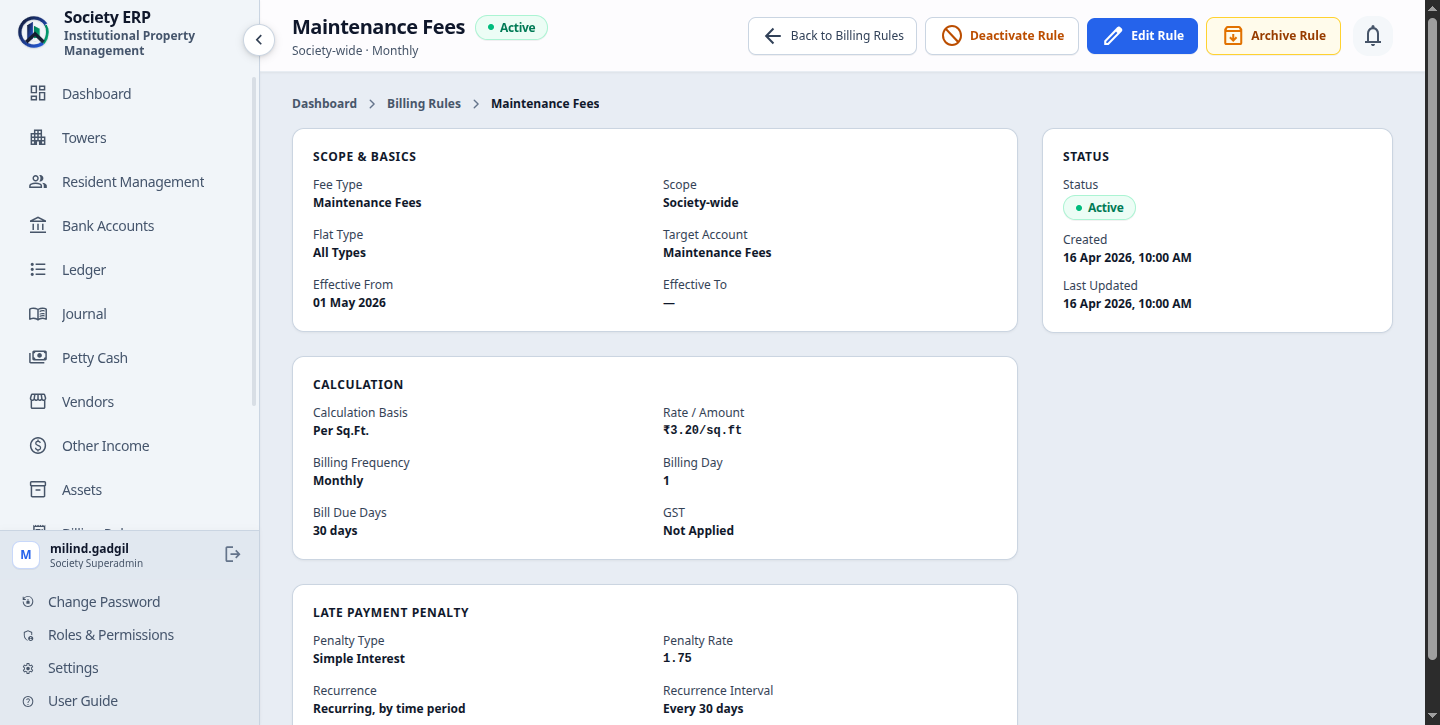
Creating a rule
- Open Billing Rules in the sidebar and click Add Billing Rule .
- Under Fee Head & Scope, choose the Fee type and the Target account, then narrow the scope if the rule is not for every flat.
- Under Billing Cycle & Validity, choose the Billing frequency, the Billing day, the Bill due days and the Effective from date.
- Under Calculation & Tax (GST), choose the Calculation basis and enter the amount or rate. Tick Apply GST (Goods & Services Tax) if the charge is taxed.
- Under Late Penalty Policy, choose the Penalty type, or leave it at No Penalty.
- Click Create Rule .
The form shows only the fields that apply: the amount or the rate according to the basis, the GST fields once GST is ticked, the penalty fields once a penalty type is chosen.
Open Add Billing Rule arrow_forwardWhat each field means
| Field | Meaning |
|---|---|
| Fee type | The name of the charge. Required. It becomes the invoice line. |
| Target account | The ledger account credited with the income. Required. Only active Revenue accounts are listed. |
| Tower, Floor, Flat type | The scope. See "Which flats a rule covers" below. |
| Billing frequency | How often the rule raises a bill. Required. See the note below. |
| Billing day | Day of the month, 1 to 28, on which bills are generated automatically. |
| Bill due days | Days from the billing period start date to the due date. 15 unless you change it. |
| Effective from | The first date the rule applies. Required. |
| Effective to | Optional last date. Leave blank for a rule with no end. Remove end date clears it. |
| Rule Active | Inactive rules are excluded from bill generation. |
| Calculation basis | Flat Rate or Per Sq.Ft. |
| Flat amount | The fixed charge per flat. Required for Flat Rate. |
| Rate per sqft | The charge per square foot. Required for Per Sq.Ft. |
| Apply GST | Adds GST to bills from this rule. |
| Gst rate | The GST percentage, 0 to 100. 18.00 unless you change it. |
| Also apply GST on late penalties | Adds GST at the same rate to the late penalty. When unticked, GST applies only to the base charge. |
| Penalty type | No Penalty, Flat Rate, Simple Interest or Compound Interest. |
| Penalty rate | A rupee amount for Flat Rate; a percentage for the two interest types. Required once a penalty type is chosen. |
| Recurring Penalty | Tick to charge the penalty again for every further period the bill stays unpaid. Unticked, it is charged once. |
| Penalty recurrence days | The length of one period in days. Required when Recurring Penalty is ticked. |
Which flats a rule covers
A rule applies to a flat when all three scope fields match it. A blank field matches everything.
| Tower | Floor | Flat type | Who is billed |
|---|---|---|---|
| All Towers / Buildings | All Floors | All Flat Types | Every active flat in the society. The list shows this as Society-wide. |
| A Wing | All Floors | All Flat Types | Every active flat in A Wing. |
| A Wing | Ground Floor | All Flat Types | Every active flat on that floor. |
| All Towers / Buildings | All Floors | 3 BHK | Every active 3 BHK flat in the society. |
- Choose the tower before the floor. The floor list fills in once a tower is chosen.
- Inactive flats are never billed. Vacant flats that are active are billed like any other.
- Rules do not replace one another. If a society-wide Maintenance rule and a 3 BHK Maintenance rule are both active, a 3 BHK flat gets a bill from each. To charge flat types differently, create one rule per flat type and no society-wide rule for that charge.
Flat rate or per square foot
| Flat Rate | Every flat the rule covers is charged the same Flat amount. Example: ₹2,500.00 per flat. |
| Per Sq.Ft. | The charge is the Rate per sqft multiplied by the flat's area. Example: ₹3.50 on a flat of 950 sq.ft. is ₹3,325.00. |
- Amounts are rounded to two decimal places, with half a paisa rounded up.
- A Per Sq.Ft. rule needs the flat's area. A flat with no area is skipped for that rule. Enter the area on the flat (chapter 4).
How frequency and amount work together
The amount or rate you enter is the charge for one whole cycle. A Quarterly rule of ₹3,000 raises one ₹3,000 bill every three months, not ₹1,000 a month and not ₹9,000. Cycles are counted from the month of Effective from: a Quarterly rule effective from April bills in April, July, October and January, and is skipped in the months between. The bill's period runs to the end of the cycle. To move a rule to different months, change its Effective from date.Billing day, due date and effective dates
- Billing day. Early in the morning of this day of the month, bills are generated for the current month without anyone clicking anything (chapter 12). The day stops at 28 so that it exists in every month.
- Due date. The billing period start date plus the Bill due days. Bills are for the period starting on the 1st, so with 15 due days the August bill is due on 16 August, whichever day it was generated.
- Effective from and Effective to. The rule is used when the billing period start date falls on or between these dates. A rule effective from 10 August is not used for the period starting 1 August; it starts with September. Effective to cannot be earlier than Effective from.
Late penalty
A penalty starts on the first day after the due date and is recalculated every night while the bill stays unpaid.
| Penalty type | Penalty rate is | Penalty |
|---|---|---|
| No Penalty | Not used | None. |
| Flat Rate | Rupees | Rate × periods. |
| Simple Interest | Percent per period | Bill line total × rate% × periods. |
| Compound Interest | Percent per period | Bill line total × ((1 + rate%) raised to the number of periods, minus 1). |
- Periods. With Recurring Penalty unticked there is one period: the penalty is charged once, on the first overdue day, and does not grow. With it ticked, periods = 1 + (days overdue ÷ recurrence days, rounded down).
- Bill line total is the charge including its GST.
- Part payments do not reduce the base. Interest is worked out on the full line total, not on the balance left.
- GST on the penalty. If Also apply GST on late penalties is ticked, GST at the rule's rate is added to the penalty.
Worked example. A bill of ₹2,500.00 was due on 15 August. The rule's recurrence is 30 days. On 20 September the bill is 36 days overdue, so periods = 1 + (36 ÷ 30, rounded down) = 2.
| Policy | Working | Penalty on 20 September |
|---|---|---|
| Flat Rate, ₹100 | 100 × 2 | ₹200.00 |
| Simple Interest, 2% | 2,500 × 2% × 2 | ₹100.00 |
| Compound Interest, 2% | 2,500 × (1.02 × 1.02 − 1) | ₹101.00 |
| Simple Interest, 2%, not recurring | 2,500 × 2% × 1 | ₹50.00 |
| Simple Interest, 2%, with 18% GST on penalty | 100.00 + 18% of 100.00 | ₹118.00 |
From day 1 to day 29 overdue there is one period; from day 30 there are two; from day 60, three.
Old bills keep their old policy
The penalty policy and GST rate are copied onto each bill when it is generated. Editing a rule later changes future bills only. Bills already issued carry on under the policy they were issued with.GST on a rule
- GST is decided rule by rule. There is no society-wide rate and no threshold amount. A rule with Apply GST ticked adds its own percentage to every bill it produces; a rule without it adds nothing.
- Because each rule produces its own invoice, a flat can receive a taxed invoice and an untaxed one for the same month.
- GST = charge × rate%, rounded to two decimals. ₹2,500.00 at 18% gives ₹450.00 GST and a bill of ₹2,950.00.
- The GST collected is credited to GST Output Tax Payable in the ledger, not to the rule's income account.
- Whether your society must charge GST, and at what rate, is a question for your auditor. The system applies what you enter.
Editing, deactivating and archiving
The Billing Rules list shows each rule's fee type, scope, flat type, rate or amount, frequency and status. Click a row, or View Details in its menu, to see the whole rule.
| Edit Rule | Change any field. Takes effect from the next bills generated. |
| Deactivate Rule | Pauses the rule. No bills are generated from it until you choose Activate Rule . Clicking the Active or Inactive badge in the Status column does the same. |
| Archive Rule | Deactivates the rule and takes it off the list. Use it for a charge the society no longer levies. |
| Restore Rule | On the View Archived list. Brings the rule back as Inactive; activate it yourself when you want it billed again. |
- Tick several rows to archive, activate or deactivate them together from the bar at the bottom.
- Invoices already issued are not touched by deactivating or archiving a rule.
- Delete permanently is offered on archived rules. Use it only for a rule created by mistake.
Common problems
- The Fee type or Billing frequency list is empty: none is active. Add or activate one under Settings.
- The Target account list is empty: there is no active Revenue account. Add one in the Ledger.
- "Select a tower before selecting a floor": a floor scope needs its tower.
- "Flat amount is required" or "Rate per sq.ft. is required": fill the field that matches the Calculation basis.
- A flat was not billed: check that the rule is active and not archived, that the billing period start date falls within its effective dates, that the flat is active and matches the scope, and for a Per Sq.Ft. rule that the flat has an area.
- A flat was billed twice for the same charge: two active rules with the same fee type both cover it. Narrow the scope of one, or deactivate it.