
12. Generating bills
Previewing and running bill generation, and raising a one-off additional bill.
How bills come into being
Bills are produced from the billing rules in three ways:
| Automatically | Every day, shortly after midnight, the system generates the current month's bills for any society that has a rule whose billing day is that day. |
| One flat, one charge | An additional bill for a single flat, for something the rules do not cover. |
On this installation regular bills are generated automatically only. The sidebar item is Additional Bills , which opens the one-off bill form described below.
Every bill is an invoice in status Issued. It is posted to the ledger at once, and the flat's residents are notified.
Open Additional Bills arrow_forward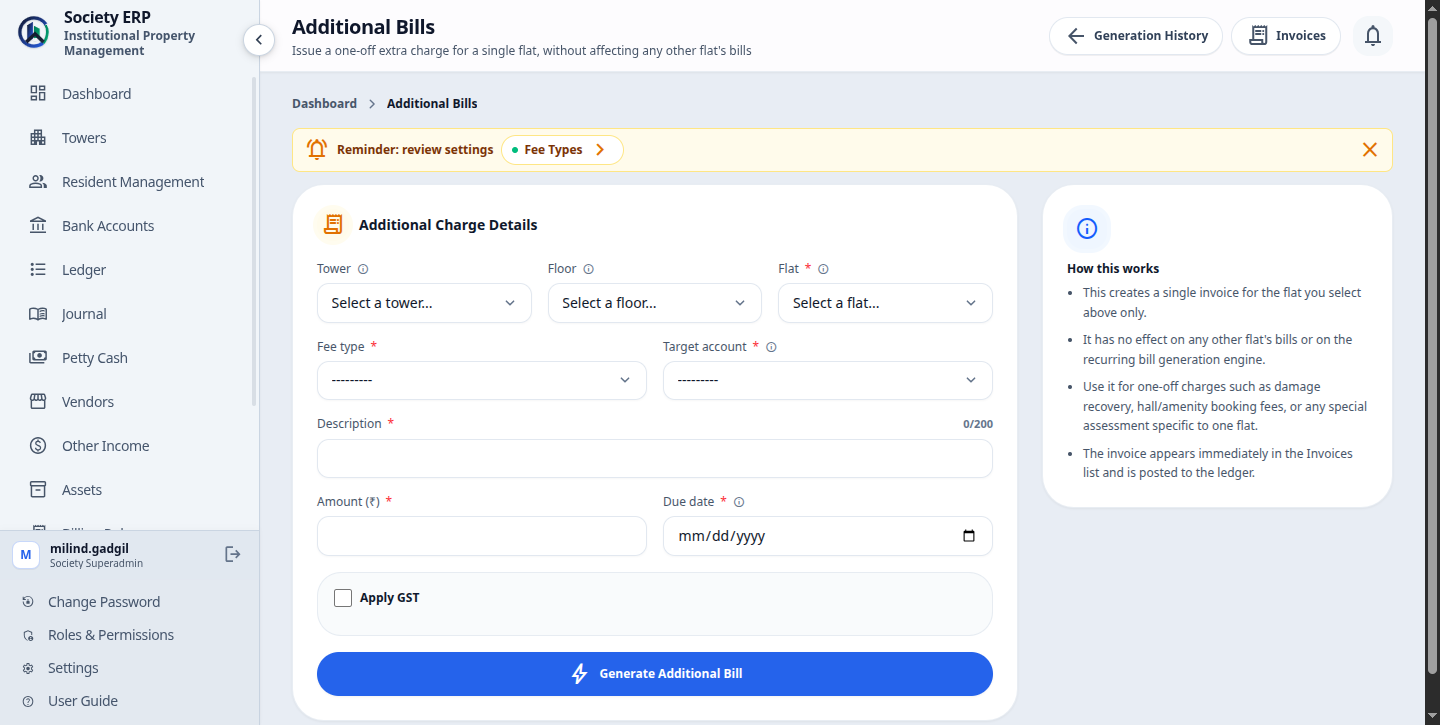
What a generation run does
A run takes one billing period, which is the calendar month containing the period start date, and works through the society's active flats:
- It picks the rules that are active, not archived, and whose effective dates include the period start date.
- For each flat it finds the rules whose tower, floor and flat type scope match, and creates one invoice per rule.
- If the flat already has an invoice for that rule and period which is not cancelled, nothing is created. It is counted as Already Billed. Running the same period twice therefore never duplicates bills.
- A flat that no rule covers is counted as Skipped. So is a Per Sq.Ft. rule on a flat with no area.
- The due date is the period start date plus the rule's Bill due days, not the day of the run.
- Inactive flats are left out. Nothing is generated while the society is suspended.
If an invoice is cancelled, the next run for the same period creates a fresh one for that flat and rule.
Generation History
Click Generation History at the top of the Additional Bills page. Each entry is one attempt: the billing period, the tower if it was limited to one, when it started and who started it, how many bills it generated, and its status. Runs started by the system have no name against them. Preview runs are not recorded.
| Queued | Waiting for the background worker to pick it up. |
| Running | Bills are being created. The attempt's page refreshes itself every few seconds. |
| Completed | Every flat was processed. |
| Failed | Part or all of the run did not finish. The reason is shown on the attempt's page. |
Open an attempt to see its figures (Generated, Skipped, Already billed, Demand) and the list Bills Generated in This Attempt.
After a failed run
Bills created before the failure are kept. Run the same period again: flats already billed are passed over and only the remaining ones are billed. A run that shows no progress for 30 minutes is marked Failed by the system so that it stops blocking new runs.Automatic daily generation
Each night, a few minutes after midnight, the system looks at every active society. If the society has an active billing rule whose Billing day is today's date, it queues a generation run for the month that has just begun or is under way, with the period starting on the 1st.
- The run covers all the society's active rules that are due that month, not only the rules whose billing day it is. A Quarterly, Half-Yearly or Annual rule is included only in the month that opens one of its cycles. Flats already billed are passed over, so nothing is duplicated when several rules have different billing days.
- It appears in Generation History like any other run.
- It is skipped if a run is already in progress, if the society is suspended, or if Generate Bills or Billing Rules has been switched off for the society.
- Billing days stop at 28, so the automatic run happens in every month, including February.
To have a new rule billed, set its billing day to a date that has not yet passed this month. To stop a rule being billed, deactivate it before its billing day.
Open Billing Rules arrow_forwardAdditional Bill for one flat
An additional bill is a single invoice for a single flat: damage recovery, a hall booking, a special assessment. It does not touch any other flat or any regular bill.
- Open Additional Bills in the sidebar.
- Choose the Tower and Floor to shorten the flat list, then the Flat.
- Choose the Fee type and the Target account.
- Enter the Description, the Amount (₹) and the Due date.
- Tick Apply GST and check the GST Rate (%) if the charge is taxed.
- Under Late Penalty Policy, leave No Penalty or choose a penalty type (see the table below).
- Click Generate Additional Bill . The new invoice opens.
| Field | Meaning |
|---|---|
| Tower, Floor | Optional. Used only to narrow the flat list. |
| Flat | Required. Only occupied flats are listed. Vacant, Reserved, inactive and archived flats cannot be billed here. |
| Fee type | Required. The classification of the charge. |
| Target account | Required. The Revenue account credited with the income. |
| Description | Required, up to 200 characters. Printed on the invoice, for example "Parking Damage Charge". |
| Amount (₹) | Required. The charge before GST. |
| Due date | Required. Cannot be in the past. |
| Apply GST, GST Rate (%) | Optional. The rate starts at 18.00 and is required once GST is ticked. |
| Penalty type, Penalty rate | Optional. No Penalty, Flat Rate, Simple Interest or Compound Interest. The rate (a percentage, or an amount for Flat Rate) is required once a type is chosen. |
| Recurring Penalty, Penalty recurrence days | Optional. Re-applies the penalty while the bill stays unpaid. The number of days between penalties is required when it is ticked. |
| Also apply GST on penalty | Optional. Offered when GST is ticked; the penalty is then taxed at the bill's GST rate. |
- The invoice is dated today, appears in Invoices at once and is posted to the ledger.
- An additional bill carries a late penalty only if you choose one in the Late Penalty Policy. With No Penalty it becomes Overdue after its due date, but nothing is added to it.
- Clicking Generate Additional Bill twice, or submitting the same form from two tabs, creates one invoice: the button locks on the first click, and the second request opens the bill already created. There is no check against raising the same charge again later, though. Filling the form in afresh with the same details creates a second invoice; cancel the extra one.
Common problems
- A run stays Queued: the background worker is not running. Contact whoever looks after the server.
- The automatic bills did not appear: check that at least one active rule has today's date as its billing day, and look in Generation History for a Failed run.
- A flat is missing from the bills: the flat, its floor or its tower is inactive, or no rule covers its tower, floor and flat type.
- A flat is missing from the additional bill's flat list: its ownership type is Vacant or Reserved, or it is inactive.