
10. Billing settings
Financial year, waiver switches, fee types, billing frequencies and payment ledgers.
What you set up here
Five pages under Settings , in the Billing & Financial Rules group, prepare the ground for billing. Set them up once, before you create the first billing rule.
| Billing Configuration | Society-wide switches: the financial year, waivers, signed vouchers and document reminders. |
| Fee Types | The names of the charges you bill, such as Maintenance Fees or Water Charges. |
| Billing Frequencies | The cycle names offered on a billing rule, such as Monthly or Quarterly. |
| Payment Ledger Settings | Which ledger account each payment mode is received into, and the voucher type its receipt is issued under. |
| Journal Voucher Configuration | The society's voucher types and their numbering series, and which type each voucher-creating event posts under. Covered in chapter 9. |
GST is not set here. It is switched on and given its rate on each billing rule (chapter 11).
Open Settings arrow_forward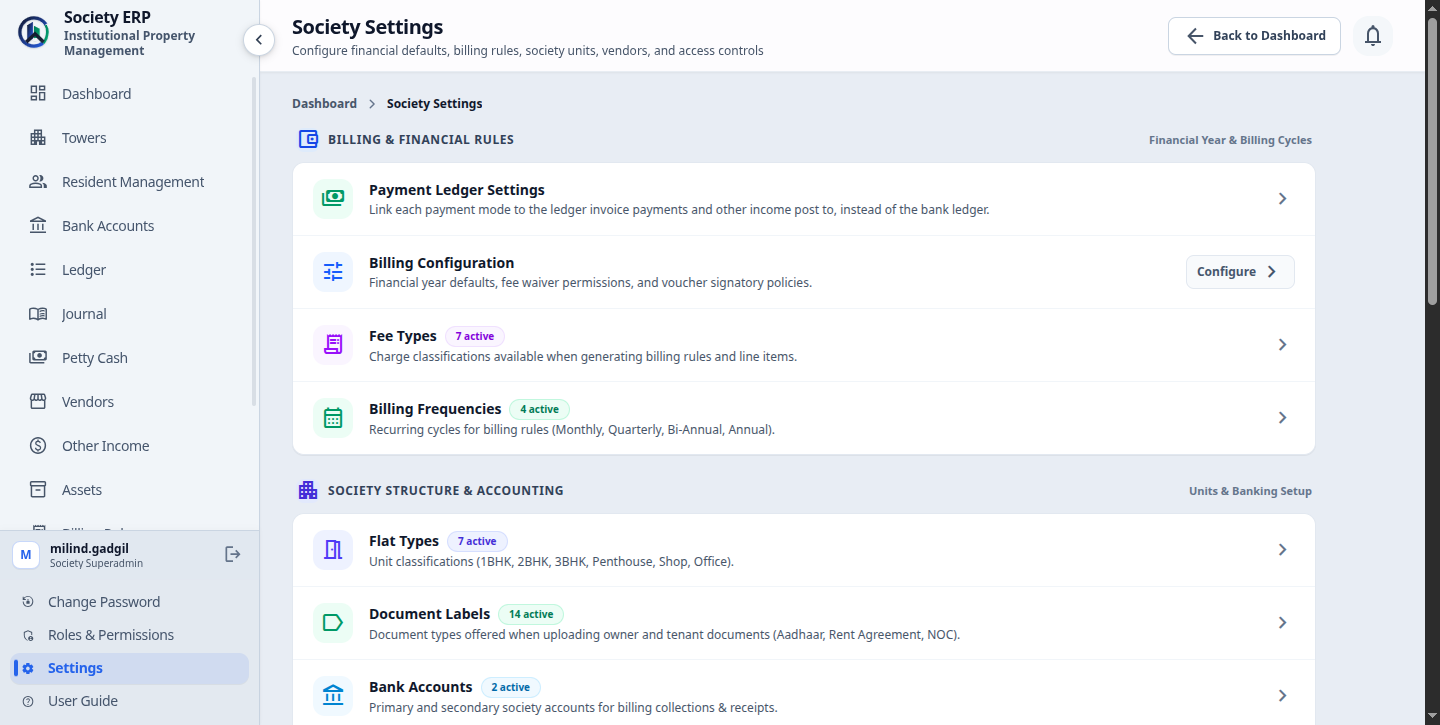
Billing Configuration
- Open Settings and click Billing Configuration .
- Change the fields you need.
- Click Save Configuration .
| Field | What it does |
|---|---|
| Financial Year Start Month | The month in which the society's financial year begins. April unless you change it. It is shown with the society profile on the Dashboard. |
| Fee Waiver Requests | When on, staff whose role has the Waivers permission can raise a waiver request on an invoice. When off, only the Superadmin and Manager can. See chapter 15. |
| Require Authorized Signatory on Journal Vouchers | When on, a journal voucher is not considered fully authorized until a signed copy is uploaded with the signatory's name. See chapter 9. |
| Always Show Waiver Approve/Reject Controls | Controls when the waiver approval panel is offered to approvers on an invoice. See chapter 15. |
| Remind before expiry (days) | How many days before a resident's document expires the reminder email is sent. 0 to 365. Enter 0 to turn reminders off. See chapter 5. |
About the wording on screen
The page describes Fee Waiver Requests as letting residents submit requests. Residents cannot raise a waiver themselves. The switch decides whether staff other than the Superadmin and Manager may raise one.Fee Types
A fee type is the name of a charge. Every billing rule and every one-off bill is raised under one fee type, and the name appears on the invoice line. A new society starts with Maintenance Fees, Sinking Fund, Non-Occupancy Charges, Facility Charges, Penalty Charges, Water Charges and Common Area Maintenance.
- Open Settings and click Fee Types .
- Click Add Fee Type .
- Enter the Name, for example Lift Maintenance, and if you wish a Description of when it applies.
- Leave Active ticked and save.
- Names must be unique in the society. Capital letters do not make a name different.
- The Used In column shows how many active billing rules use the fee type.
- An Inactive fee type is hidden from the billing rule form. Archive takes it off the list; View Archived shows archived ones, where you can Restore them.
- A fee type that an active billing rule still uses cannot be deactivated or archived. Change or archive the rule first. Old invoices do not block it.
- An archived fee type can be deleted permanently from the archived list.
Billing Frequencies
A billing frequency is the cycle name you choose on a billing rule. A new society starts with Monthly (every 1 month), Quarterly (3), Half-Yearly (6) and Annually (12).
- Open Settings and click Billing Frequencies .
- Click Add Billing Frequency .
- Enter the Name and the Interval months, a number from 1 to 12, for example 2 for a bi-monthly cycle.
- Add a Description if you wish, leave Active ticked and save.
Activating, archiving and restoring work exactly as for fee types, and a frequency used by an active billing rule cannot be deactivated or archived.
How a frequency drives billing
The Interval months is how often a rule with this frequency raises a bill: 1 bills every month, 3 every third month, 12 once a year. The rule's amount is charged once per cycle, exactly as entered. Cycles are counted from the rule's Effective from month. See chapter 11.Payment Ledger Settings
When a payment is recorded, the money is debited to a ledger account. By default every payment goes to the Bank Accounts Ledger. Use this page if different kinds of payment should land in different accounts, for example cash into a cash-in-hand account and gateway payments into a Razorpay settlement account.
- Open Settings and click Payment Ledger Settings .
- Find the row for the payment mode: Cash, Cheque, Bank Transfer (NEFT/RTGS), UPI or Payment Gateway.
- Choose the Receiving Ledger. Choose Default (Bank Accounts Ledger) to go back to the default.
- Choose the Voucher Type the receipt is issued under, or leave it on Default. This is the same setting as the mode's row on Voucher Mapping (chapter 9).
- Click Save on that row. Each row saves its ledger and its voucher type together.
- The settings apply to payments recorded after you save. Receipts already posted are not changed.
- The receiving ledger also applies to other income paid by the same mode. Other income's voucher type is set separately, on Voucher Mapping.
- Only active ledger accounts are listed. Create the account in the Ledger first (chapter 8).
- The page needs the Billing Rules edit permission.
Common problems
- "A fee type with this name already exists": the name is taken, possibly by an archived fee type. Restore the archived one instead.
- "Could not be archived because they are currently in use": an active billing rule uses the fee type or frequency. The message names the rule count.
- A fee type or frequency is missing from the billing rule form: it is inactive or archived. Activate or restore it here.
- A ledger is missing from the Receiving Ledger list: the account is inactive. Reactivate it in the Ledger.
- A voucher type is missing from the Voucher Type list: it is inactive or archived. Activate or restore it under Journal Voucher Configuration (chapter 9).
- A card is missing from the Settings page: your role does not include it, or the feature has been switched off for the society.