
20. Assets
The asset register, warranty and contract expiry, and the service log.
What the asset register is for
Assets are the things the society owns and has to look after: the generator, lifts, water pumps, CCTV, fire equipment, clubhouse furniture. The register does three jobs:
- it records what was bought, when, for how much, and puts the purchase in the books;
- it remembers when each warranty and maintenance contract (AMC) ends and reminds the office before it does;
- it keeps a service history for each asset, with the cost of each visit posted to the ledger.
The Asset Register lists each asset with its category, purchase, warranty end, contract end and status. Click an asset's name to open its page and service history.
Open Assets arrow_forward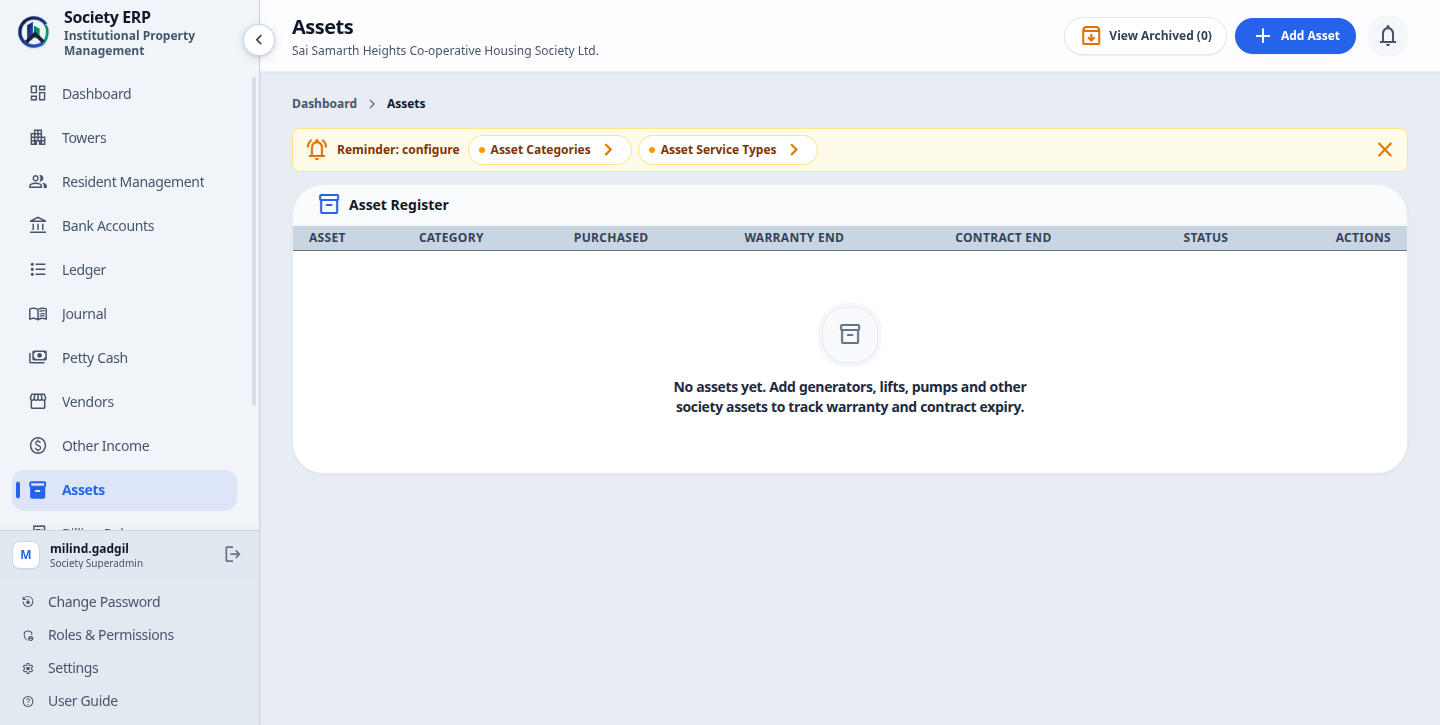
Asset categories and service types
Two short lists under Settings feed the asset forms. Both come with starter entries and both can be changed to suit your society.
| Asset Categories | Groups for assets. Starts with Generator, Lift, Pump, Furniture, Electrical, Security / CCTV, Fire Safety and Other. |
| Asset Service Types | Kinds of maintenance visit. Starts with Routine Service, Repair, Inspection, AMC Visit, Part Replacement and Other. |
Both lists work the same way:
- Add Asset category or Add Service type adds an entry. The only field is Name, which must be unique in the list.
- Rename in the row's menu changes the name everywhere it is used.
- The In use column counts the assets in a category, or the service entries of a type.
- Archive hides an entry from the forms. It is refused while the count in In use is above zero. For a category, archived assets are not counted; for a service type, every service entry ever logged counts, so a type that has been used cannot be archived.
- View Archived lists archived entries, where Restore brings one back.
Adding an asset
- Open Assets and click Add Asset .
- Fill in Asset Details.
- Fill in Purchase: the date, the cost and the ledger account. All three are required.
- Fill in Warranty & Maintenance Contract if the asset has either.
- Click Add Asset .
| Name | What the asset is, for example "Tower A Lift 1". Required. |
| Asset tag / serial no. | Your own tag number or the maker's serial number. Optional. |
| Category | One of your asset categories. Required. |
| Location | Where it sits, for example Tower A basement or Clubhouse. Optional. |
| Vendor | The supplier or the maintenance contractor, chosen from your vendors. Optional; archived vendors are not listed. |
| Status | Active, Under Maintenance or Retired. See below. |
| Purchase date | The date of purchase. The purchase voucher carries this date. |
| Purchase cost | What was paid. Cannot be negative. |
| Ledger account | The asset account the purchase cost is debited to. Only active accounts of type Asset are listed, for example Fixed Assets. |
| Warranty end date | The last day of the maker's warranty. Optional. Cannot be before the purchase date. |
| Maintenance contract end date | The last day of the current AMC. Optional. Cannot be before the purchase date. |
| Remind me (days before expiry) | How far ahead the first reminder is sent and the "expiring" badge appears. Starts at 30. |
| Notes | Anything else worth recording, up to 255 characters. |
Posting the purchase to the ledger
The purchase is posted automatically when you click Add Asset . There is no separate step and no approval. One Bank Payment voucher is created:
| Debit | Credit |
|---|---|
| The asset's Ledger account | Bank Accounts Ledger |
- In the register the cost shows posted. The asset's page shows "Posted as" with the voucher number.
- A posted purchase is locked. When you edit the asset, the purchase date, cost and ledger account can no longer be changed. To correct them, reverse the voucher in the Journal and record the right figures with a new voucher.
- A cost of zero is not posted. The asset is saved with the message "Asset added, but the purchase was not posted". Entering a cost later through Edit does not post it either; the asset's page then shows "Not posted to ledger". So enter the real cost when you add the asset. For an old asset whose value is already in your opening balances, enter zero so it is not counted twice.
The system does not check whether a purchase has already been recorded elsewhere. If a contractor's bill for the same equipment is also logged as a vendor expense with a cost (see chapter 18), it posts its own Bank Payment voucher independently, and the purchase is debited to the books twice. Record a capital purchase in one place only — the Asset Register if you want it tracked as an asset, or a vendor expense if you don't — never both.
Asset statuses
| Active | In normal use. |
| Under Maintenance | Out of service for repair. Reminders continue. |
| Retired | No longer in use but kept in the register, shown dimmed. Reminders stop and it is left out of the "expiring / expired" count. |
Change the status with Edit / Renew . Changing the status posts nothing to the ledger; writing off a retired asset is a journal voucher your accountant records.
Warranty and contract expiry reminders
Beside each warranty and contract date the register shows how long is left:
| "120 days left" | Plain text. Nothing to do yet. |
| "12 days left" badge, or "Expires today" | The date is within the asset's Remind me number of days. |
| Expired | The date has passed. |
When any asset is expiring or expired, the top of the register shows a count such as 3 expiring / expired. Click it to list only those assets; click again to show them all.
The system also sends reminders. Once a day, in the morning, it checks every asset and sends a reminder for the warranty and, separately, for the maintenance contract at three points:
- 30 days before the end date, or whatever number you set in Remind me (days before expiry) for that asset.
- 7 days before.
- 1 day before.
- Reminders go to the society's Superadmin, Manager and Accountant users, through the notification channels switched on for your installation (normally email).
- Each reminder is sent once. If an asset is added when its date is already close, the reminder for the nearest point is sent on the next daily check.
- No reminder is sent after the date has passed, for a Retired or archived asset, or for a date left blank.
- The 7-day and 1-day reminders are fixed. Only the first one can be changed, asset by asset.
Edit / Renew
One form both corrects an asset's details and records a renewal.
- Click Edit / Renew on the asset's page or in its row's menu.
- To record a renewed warranty or AMC, change the Warranty end date or Maintenance contract end date to the new end date.
- Click Save Changes .
The badge clears and reminders start over for the new date. The old date is not kept, so if you want a record of the renewal, log a service entry for it (for example type AMC Visit, with the renewal fee as the cost) or put a line in Notes.
Logging a service
Record each maintenance visit, repair or inspection against the asset it was done on.
- Open the asset and click Log Service .
- Fill in the fields below and click Log Service .
| Service date | The day the work was done. Starts as today. |
| Service type | One of your service types. Required. |
| Description | What was done. Required. |
| Vendor | Who did the work. Optional. |
| Cost | What was paid for this visit. Leave blank for a free visit under warranty or AMC. |
| Next service date | When the next visit is due. Optional, and cannot be before the service date. It is shown in the service history for reference; no reminder is sent for it. |
| Expense ledger account | The account the cost is debited to, for example Electrical & Maintenance. Required when a cost is entered. Any active ledger account can be chosen. |
If a cost is entered, the system posts one Bank Payment voucher at once, dated with the service date. There is no approval step.
| Debit | Credit |
|---|---|
| The Expense ledger account chosen on the entry | Bank Accounts Ledger |
With no cost, the entry is saved in the Service History and nothing is posted. A service entry cannot be edited or removed after it is saved.
Do not record the same payment twice
A service cost logged here is already in the books. If you also log it as a vendor expense or a petty cash expense, it will be counted twice. Choose one place for each payment.Archiving and restoring
- Archive in the row's menu takes an asset off the register. Its reminders stop, and it can no longer be edited or have a service logged. Nothing blocks archiving, and its vouchers stay in the books.
- View Archived lists archived assets. Restore Asset puts one back, and its warranty and contract are tracked again.
- Use Retired for an asset that is no longer in use but should stay visible in the register. Use Archive for one entered by mistake or disposed of long ago.
- Assets cannot be deleted permanently.
Common problems
- The Ledger account list on the asset form is empty: the society has no active account of type Asset. Add or reactivate one, such as Fixed Assets, in the Chart of Accounts.
- "Asset added, but the purchase was not posted": the purchase cost was zero. See "Posting the purchase to the ledger" above.
- The purchase date, cost and ledger account are greyed out: the purchase is posted and locked. Correct it with a reversal in the Journal.
- "Warranty end date cannot be before the purchase date": check the year in both dates.
- "Select a ledger account to post this service cost to": a cost was entered without an expense ledger account. Choose one, or clear the cost.
- "Cannot archive ... because ... active record(s) use it": the category or service type is still in use. Move the assets to another category first.
- No reminder arrived: check that the asset is not Retired or archived, that the end date is filled in and still in the future, and that the Superadmin, Manager and Accountant accounts have correct email addresses. Reminders also stop while the society is suspended or the Assets feature is switched off.
- There is no Edit / Renew or Log Service button: the asset is archived. Restore it first.